HYPEROPTIC ROUTERS AND EQUIPMENT REVIEW

Hyperoptic routers review: How good are they?

Hyperoptic’s Hyperhub is a Wi-Fi 6 router with four Gigabit Ethernet ports, and replacing it with your own router is unusually easy. Its whole-home Wi-Fi add-on is less appealing because it costs extra without guaranteeing the result. This review explains what the supplied router can do and when replacing it makes sense.
By Data checked  Checked weekly
Fibredog holds a Hyperoptic-branded router while reviewing broadband equipment

Hyperoptic routers and equipment scorecard

Six key areas. One overall score. All calculated using our transparent methodology.

Wi-Fi quality

How good the standard routers’ Wi-Fi is in everyday use, looking at specifications, Wi-Fi bands/type, and how many devices they can support.

7.9/10

Wi-Fi range

How far the router’s Wi-Fi should reach around the home, with consideration given to local factors like large homes or thick walls.

7.2/10

Whole-home Wi-Fi

Whether the provider offers a mesh router system or extra help for larger homes, whether it’s good, and whether it’ll cost you extra.

6.3/10

Wired connectivity

How well the router supports Ethernet and wired devices, looking at number of ports, their speeds, and how accessible they are.

8.2/10

Router controls

How much control you get through the app, admin page and any controls you might have on the router itself.

7.7/10

Using your own router

How easily you can use your own third-party router or mesh hardware – whether you can use anything you like or if it’s limited in any way.

9.9/10

Wi-Fi quality

The Hyperhub uses Wi-Fi 6 and includes the features needed to share the signal between several phones, laptops, televisions and consoles at once. You also get modern Wi-Fi security. Hyperoptic doesn’t offer a newer or more capable router with its fastest package.

Key differences

The Hyperhub handles a busy home’s Wi-Fi without a fuss

Hyperoptic’s current home router is the Zyxel EX3301-T0. It uses dual-band Wi-Fi 6, with four internal antennas and features called beamforming, MU-MIMO and OFDMA. In everyday use, they help the router aim and share its Wi-Fi when several devices are active. You also get WPA3 security and a separate guest network.

Wi-Fi 6 suits the devices most homes use

Wi-Fi 6 works well with the phones, laptops, televisions and consoles found in most homes. Hyperoptic says the Hyperhub can connect up to 64 wireless devices, but that doesn’t mean 64 busy devices will all fly at once. It doesn’t support the 6GHz band used by Wi-Fi 6E equipment. It isn’t a Wi-Fi 7 router either, so you don’t get the newer generation’s other upgrades.

Every package comes with the same Hyperhub

Hyperoptic doesn’t reserve a better router for its fastest package. The same Hyperhub supports the home range, from 159Mbps through to 900Mbps. That’s fair to customers on the cheaper tiers, and its wired sockets are fast enough for every current package. The 900Mbps service still doesn’t unlock newer Wi-Fi, a faster 2.5Gb Ethernet socket or easier controls. You’re paying for a faster Full Fibre connection rather than a better router. If you need those features, you can replace the Hyperhub with your own router.

Total Wi-Fi adds coverage, not speed

If one Hyperhub can’t reach the whole home, Total Wi-Fi adds a Minihub for an extra monthly charge. It’s a mesh Wi-Fi add-on rather than a faster main router, and Hyperoptic may provide a second Minihub after troubleshooting.

INTERACTIVE TOOL

Compare routers from any provider

This provider’s routers are pre-selected for comparison with one another. However, you can use this tool to compare any router from any major provider using the dropdown menus below.

Feature Choose router Choose router
Fibredog rating — —
Router included as standard — —
Router manufacturer — —
Router model — —
Wi-Fi standard — —
Wi-Fi bands — —
2.4GHz supported — —
5GHz supported — —
6GHz supported — —
Beamforming — —
Antenna count — —
Maximum connected devices — —
Stated coverage — —
Total Ethernet ports — —
MU-MIMO — —
OFDMA — —
WPA3 security — —
Guest network — —
Antenna type — —
Gigabit Ethernet ports — —
2.5Gb Ethernet ports — —
5Gb Ethernet ports — —
10Gb Ethernet ports — —
WAN port speed — —
USB ports — —
Telephone ports — —
ONT Ethernet input — —
Coaxial input — —
Power connection — —
Mesh support — —
Provider mesh product — —
Third-party router use — —
Modem mode — —
Compatible broadband technology — —
App management — —
Parental controls — —
QoS — —
Automated QoS — —
Device prioritisation — —
Anti-bufferbloat controls — —
Manual queue management (SQM/CAKE) — —
Smart channel selection — —
Security features — —
Gamer mode — —
Game traffic prioritisation — —
Gaming QoS profiles — —
Server ping routing tools — —
Latency dashboards — —
Per-device gaming presets — —
Gaming VPN routing features — —
Work from home mode — —
Automatic firmware updates — —
Firmware update notes — —
Router height — —
Router width — —
Router depth — —
Router weight — —
Power consumption — —
Router orientation — —
Wall mountable — —
Router colour — —
Self-installation — —
Browser admin interface — —
WPS — —
Status light control — —
Reset button — —
Wi-Fi on/off button — —
Where would you like to go next? See all tools See all tools
Compare all broadband deals

Every package comes with one router choice

Hyperhub

Included with every package

Zyxel EX3301-T0 with dual-band Wi-Fi 6, four internal antennas and four Gigabit LAN ports

No premium alternative

Same on every tier

The 900Mbps package doesn't come with a more advanced router or faster Ethernet connection.

Four

Gigabit Ethernet LAN ports for wired devices

Enough for every current Hyperoptic speed, but there's no multi-gigabit port for faster local networking.

How the Hyperhub copes with everyday use

For everyday use, the Hyperhub is unlikely to feel like a bargain-bin router. Wi-Fi 6 and its usual efficiency features give a mixed household a good starting point for streaming, calls, browsing and gaming.

Its four internal antennas help send the signal around your home. Features called beamforming, MU-MIMO and OFDMA then aim and share that signal when several devices are active. They can make busy Wi-Fi work more smoothly, but they can't send it cleanly through thick walls, over a long distance or from a router hidden inside furniture.

The router is slim, stands vertically and can be wall mounted. That makes it easier to place in the open instead of burying it inside a television cabinet, which may improve the result without spending anything.

If you own Wi-Fi 6E or Wi-Fi 7 devices, move large files around your home network or need more than Gigabit Ethernet, the missing features become easier to notice. Homes with several floors or thick walls may also need mesh Wi-Fi. Hyperoptic doesn't offer a better router for any of those jobs, but it does make replacing the Hyperhub unusually easy.
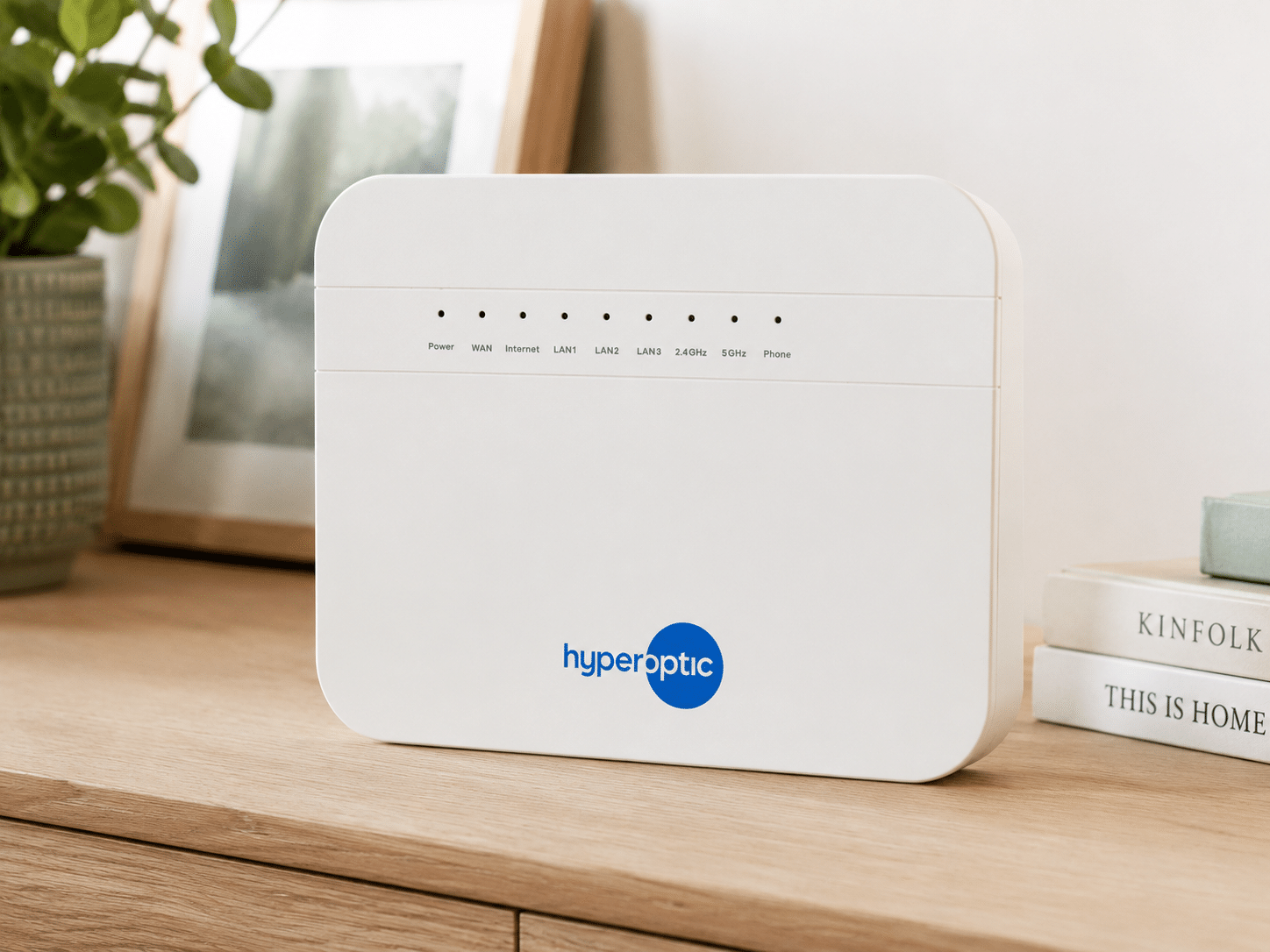
Hyperoptic router

The Hyperhub gives most households the Wi-Fi features they'll actually use, including modern security and a separate guest network. Every package gets the same router. The fastest package doesn't come with newer Wi-Fi or faster wired sockets, but most homes should get on well with what Hyperoptic supplies. If you need wider coverage or more advanced controls, you'll need your own router.

7.9 /10
Overall score

Wi-Fi quality score

This score is based on the router’s Wi-Fi standard, frequency bands, device capacity and key wireless features such as beamforming, MU-MIMO and OFDMA.

Router range

One Hyperhub may cover an average home pretty well, but there's no fixed distance its Wi-Fi will always reach. Its four internal antennas and slim design both help. Thick walls, several floors and hiding the router inside furniture will still decide whether the back bedroom gets a good signal.

Four antennas help, but they don't define the result

The Hyperhub combines four internal antennas with beamforming, which helps focus the signal towards connected devices instead of spraying it equally in every direction. MU-MIMO and OFDMA also help when several devices are active. Those are useful ingredients, but an antenna count can't tell you whether the back bedroom will be fast. A small open flat and a large brick house ask completely different things of the same router.

The slim design makes better placement much easier

At 35mm deep, the Hyperhub is easy to stand on a shelf or mount on a wall. Give it open space and some height. Hiding it behind a television or inside a cupboard blocks the signal and wastes the benefit of its slim shape.

The missing 6GHz band is more about capacity than distance

The Hyperhub uses 2.4GHz and 5GHz Wi-Fi. It has no 6GHz band, so compatible newer devices can't move onto that cleaner extra space.

Lacking 6GHz isn't automatically bad for range. Higher-frequency signals have a harder time passing through walls, so 6GHz is best suited to fast connections over shorter distances and mesh links. The older 2.4GHz band is more likely to reach a distant room, while 5GHz gives you more speed nearer the router.

Total Wi-Fi is Hyperoptic's answer to dead zones

When moving the router doesn't solve the problem, Hyperoptic offers Total Wi-Fi for an extra monthly charge. It starts with one Minihub, and Hyperoptic may provide a second after troubleshooting. That saves you from buying and setting up a separate mesh system. Hyperoptic doesn't publish a minimum room speed, percentage coverage target or money-back guarantee, though, so paying extra doesn't guarantee the result you want in the furthest room or behind several walls.

INTERACTIVE TOOL

Router range estimator

See how wall materials and router choice affect the quality of Wi-Fi around a typical home.
What are your internal walls mostly made from?
Which of these routers are you estimating?
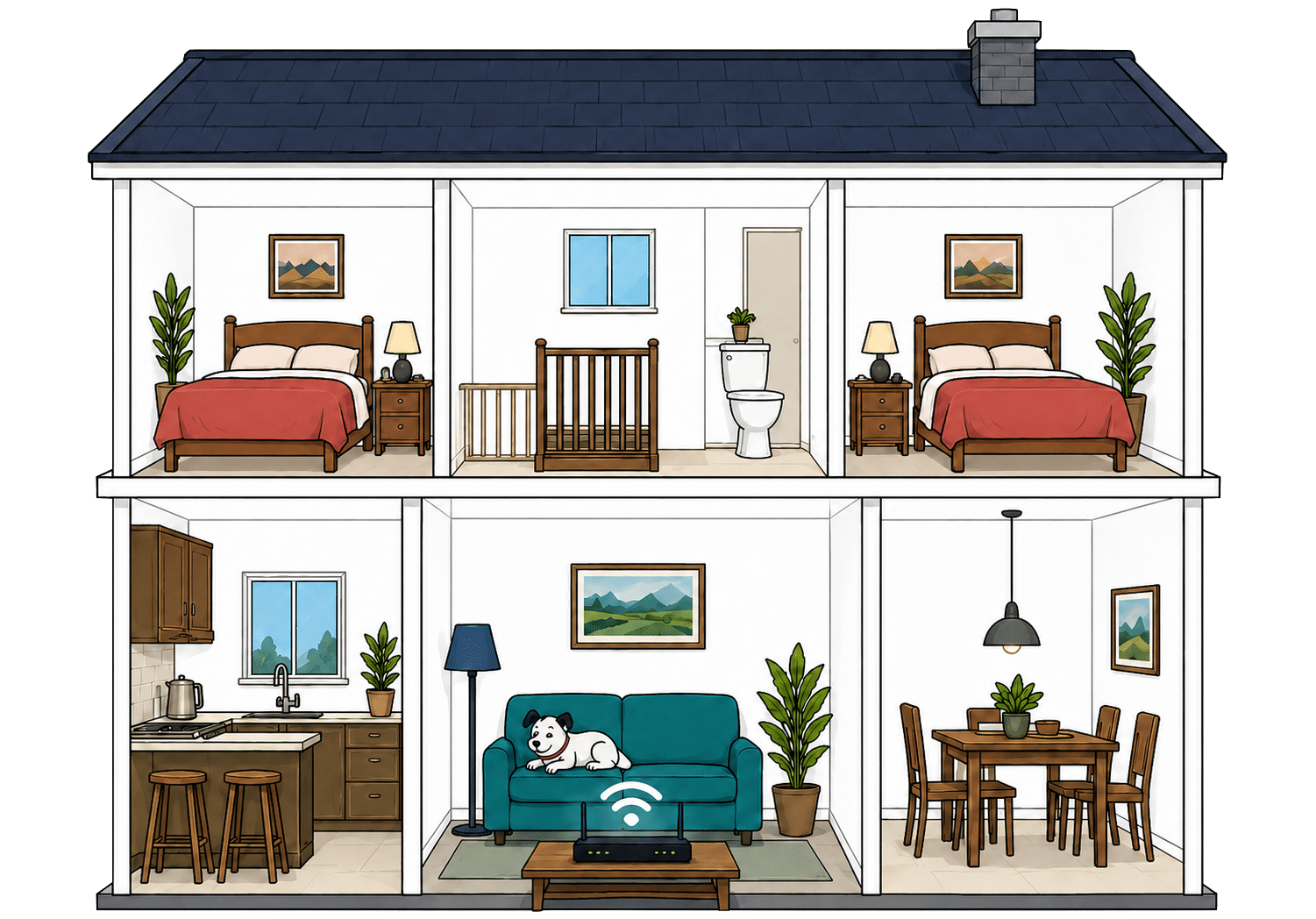
Cutaway illustration showing connected devices throughout a family home
Perfect reception – strong, reliable Wi-Fi. Average reception – slower speeds may happen. Poor reception – weak signal or drop-outs.

Use the estimator before buying more hardware

Tell the Router Range Estimator about your home's size, number of floors, wall materials and router position. It will show whether one well-placed Hyperhub is likely to reach the rooms you use.

Treat the result as a planning guide, then test the actual rooms once the service is installed. If only one room behind several walls struggles, moving the router may be enough. Several weak rooms point towards mesh Wi-Fi or Ethernet.

How to get more from your Hyperhub

  1. Place it openly

    Stand or mount the Hyperhub above floor level, away from cupboards, large metal objects and the back of the television.

  2. Test the weak rooms

    Run the same speed test beside the router and in each problem room. The difference reveals what the Wi-Fi is losing.

  3. Use the browser controls

    The Hyperhub has no management app. Log into its browser page to check connected devices, wireless settings and anything that may need changing.

  4. Move obvious blockers

    A cupboard, television, mirror or thick wall right beside the router can block more signal than a little extra distance through open space.

  5. Add mesh only when needed

    Try placement first. If several rooms remain weak, compare Total Wi-Fi with buying your own mesh system.

The two Wi-Fi bands do different jobs

2.4GHz normally travels further and gets through obstacles more easily. It suits distant rooms and low-demand devices such as smart plugs, although neighbouring networks and household equipment can make the band crowded. Don't worry if a faraway device settles here.

5GHz gives modern phones, laptops and televisions more speed when they're near the Hyperhub. It loses that speed more quickly through floors and solid walls. Paying for a faster package can't push the Wi-Fi signal through those obstacles.

Let the router steer devices automatically unless you're solving a specific problem. If a room remains slow, compare the same device beside the Hyperhub. A large improvement nearby points to coverage, not the Full Fibre connection. Repositioning, Ethernet or mesh Wi-Fi will help more than changing package.

Four internal antennas, beamforming and a slim body that's easy to place give the Hyperhub a fair chance of covering an average home. Several floors, thick walls or a long distance between rooms can still leave dead zones. Total Wi-Fi can extend the signal, but Hyperoptic doesn't promise a minimum speed or coverage level in each room. Test the rooms you use before deciding whether you need a mesh system.

7.2 /10
Overall score

Router range score

This score estimates how well the provider’s standard routers are likely to deliver usable Wi-Fi speeds around a typical home, not just whether a faint signal reaches the back bedroom.

Whole-home Wi-Fi

Total Wi-Fi adds a Minihub when the Hyperhub can't cover your home alone. It costs extra each month and isn't included with a standard broadband package. Hyperoptic starts you with one Minihub and may add a second after troubleshooting, but it doesn't promise a particular speed or level of coverage in every room.

Total Wi-Fi adds Minihubs

Total Wi-Fi pairs the Hyperhub with a compatible Minihub to spread the same network through more of your home. Devices can move between the router and Minihub without you choosing a different network name each time, which is the practical advantage of mesh Wi-Fi over a basic extender.

You'll start with one Minihub. If it still leaves a weak area after Hyperoptic has helped you troubleshoot the setup, it may supply a second. Two is the stated maximum.

Whole-home Wi-Fi isn't included in the package

Total Wi-Fi adds an extra monthly charge to your broadband bill. It isn't bundled with a faster tier or supplied automatically, so only homes that actually need wider coverage have to pay for it.

You can't simply order as many Minihubs as you want. Hyperoptic supplies one first, then decides whether a second is needed after helping you investigate the weak coverage. That gives you support with the setup, but less freedom than buying a mesh system and choosing the number of units yourself.

Hyperoptic doesn't guarantee the result

Hyperoptic doesn't publish a minimum Wi-Fi speed for each room, a percentage of your home it promises to cover or a money-back guarantee if Total Wi-Fi fails in the furthest room or behind several walls. You're paying for the Minihubs and Hyperoptic's help, not a promised result. Homes with thick walls, several floors or an outbuilding are the most likely to need extra Wi-Fi coverage, yet they're also the hardest places to predict before installation.

Two Minihubs may be enough if only one or two parts of your home have weak Wi-Fi, but you can't keep adding them. A very large home, an outbuilding or several difficult floors may need more than Hyperoptic supplies. Buying your own mesh system lets you choose the number and position of every unit, although you'll have to set it up and look after it yourself.

Test the Hyperhub before buying anything. If one or two rooms struggle and you'd like Hyperoptic to support the Minihubs, Total Wi-Fi is the simpler choice. If you need more than two extra Wi-Fi points or want to choose exactly where each one goes, compare the long-term cost with buying your own mesh system.

INTERACTIVE TOOL

Whole Home Wi-Fi Calculator

Just follow these simple steps and we will calculate how many, if any, ‘Whole Home Wi-Fi’ pods you will need from your provider.

Start here. Work through the steps in order.

Upload — Mbps
Latency — ms

Step 1: Agree to M-Lab’s data policy

M-Lab stores test data, including your IP address. Tick to agree before testing.

Step 2: Connect to your home Wi-Fi

Make sure the phone, tablet or laptop you are using is connected to your home Wi-Fi network.

Step 3: Turn mobile data off

If your device has mobile data, turn it off before you start walking around the house.

Step 4: Test next to your router

Stand next to your main Wi-Fi router and press the button below. This gives us your baseline speed.

Recorded result Router baseline
— Mbps

Step 5: Test your ground floor corners

Walk to each corner of your ground floor and run a test. If your home is not a perfect rectangle, do not overthink it. Just pick four sensible far-apart spots and keep the same numbering if you add another floor.

Corner 1 — Mbps
Corner 2 — Mbps
Corner 3 — Mbps
Corner 4 — Mbps

Last step: Add another floor or calculate

If you have another floor to test, add it below. If you have tested every floor you care about, press calculate.

Your Whole Home Wi-Fi result

Result waiting Run your tests, then press calculate.


    Total Wi-Fi at a glance

    Find the real weak spots

    Test every important room before ordering. One slow device isn't proof that the whole home needs mesh Wi-Fi.

    Use the calculator first

    Estimate the number and position of mesh points before paying for an add-on.

    Not included as standard

    Your package includes the Hyperhub. Whole-home mesh coverage adds an extra monthly charge.

    One Minihub comes first

    You get one Minihub first. Hyperoptic may supply a second after helping you investigate the problem.

    Coverage without a promise

    It can reach rooms the Hyperhub misses, but the result isn't backed by a minimum speed or money-back promise.

    Total Wi-Fi suits people who want Hyperoptic to supply and support their mesh Wi-Fi. The extra monthly charge starts with one Minihub, with a second available if troubleshooting shows you need it. There's no published room-speed target, coverage percentage or money-back guarantee. A home with several floors, an outbuilding or more than two weak areas may need a mesh system that lets you add more units and choose where each one goes.

    6.3 /10
    Overall score

    Whole-home Wi-Fi score

    This score estimates how well the provider helps customers fix Wi-Fi weak spots around the home, including mesh support, mesh devices, app control, Wi-Fi guarantees and router capability.

    Wired connectivity

    The Hyperhub has plenty of sockets for Hyperoptic's current packages. Four Gigabit Ethernet sockets let you wire several important fixed devices, while a separate socket handles the Full Fibre connection. There's also a USB 2.0 port and two phone sockets. A single wired device can't go beyond Gigabit speed, but that won't restrict today's 900Mbps top tier.

    Four Gigabit LAN ports suit every current Hyperoptic package

    The Hyperhub has four Gigabit Ethernet LAN ports for your equipment, plus a separate Gigabit WAN port for the incoming connection. You can wire a computer, console, television and network storage without immediately adding another box.

    Each LAN port can carry up to 1Gbps, which comfortably matches Hyperoptic's fastest advertised home average of 900Mbps. A wired device can therefore use the current top package without the router slowing it down. You won't need a faster port for internet use.

    Faster packages would need a faster port

    The Hyperhub has no 2.5Gb Ethernet connection. That doesn't matter while Hyperoptic's fastest advertised home average is 900Mbps. It would matter if Hyperoptic launched a package above 1Gbps, or if you wanted to move files between two devices at more than Gigabit speed.

    A computer or network drive with multi-gigabit Ethernet can't use its full local speed through the Hyperhub. You can fix that by using your own router, but you'll have to buy it yourself. It only makes sense if you regularly move large files at home.
    Illustration of Fibo comparing different wired network connections

    How a simple wired Hyperoptic network works

    Plugging devices directly into your router gives them a steadier connection than Wi-Fi. These router diagrams show the physical Ethernet ports, including any ONT or internet port used by the broadband connection itself.

    Hyperhub
    1 ONT / internet port 1Gbps
    4 usable ports 1Gbps 1Gbps each
    ★

    Use a wired connection for TVs, consoles and computers that stay in one place.

    ✓

    Use the fastest spare LAN port for the device or switch that needs the most speed.

    Use Ethernet for consoles, work computers and televisions

    A cable avoids the distance, walls and neighbouring networks that make Wi-Fi change from room to room. Use it for devices where consistency matters more than tidiness.

    A gaming computer or console is the obvious first choice. Ethernet can't improve Hyperoptic's wider network, but it takes your own Wi-Fi out of the equation and makes a fault much easier to diagnose.

    A work computer benefits for the same reason. Video calls and remote sessions need a stable connection more than an enormous speed-test result, especially when the desk is several rooms from the router.

    Wire televisions, network storage and mesh points where you can. That leaves more Wi-Fi capacity for phones and tablets while giving fixed devices a stable connection.

    How to use the Hyperhub's four Ethernet ports at home

    1. Count the LAN ports

      You have four Gigabit LAN ports. The separate WAN port connects the Hyperhub to Hyperoptic and isn't spare.

    2. Gigabit covers the current top tier

      A Gigabit port is fast enough for Hyperoptic's 900Mbps advertised average, although normal overheads mean tests may show slightly less.

    3. Multi-gigabit equipment will need another router

      There's no 2.5Gb Ethernet port. A different router is only worthwhile if you regularly move large files between devices at home.

    4. Wire the devices that care

      Give Ethernet to your main console, work computer, television or storage first. Leave phones and tablets on Wi-Fi.

    5. Add a network switch

      If four ports aren't enough, an inexpensive Gigabit Ethernet switch can add more without replacing the Hyperhub.

    Four Gigabit Ethernet sockets let you wire several devices, and every one is fast enough for Hyperoptic's current 900Mbps top package. You also get a separate socket for the incoming connection, a USB connection and two phone sockets. Moving large files between devices at more than Gigabit speed requires another router, but that won't affect normal internet use on any current Hyperoptic package.

    8.2 /10
    Overall score

    Wired connectivity score

    This score looks at how useful the router is if you want to plug devices in with cables, including the number of Ethernet ports, port speeds, phone ports and whether the router has the right connection for the network it uses.

    Router controls

    You can manage guest Wi-Fi, parental schedules, website filtering and traffic priority through the Hyperhub's browser page. There's no app or one-tap device priority, so making changes takes a little more effort than it does with the slickest provider routers.

    The useful controls live in a browser

    Log into the Hyperhub's browser page to see connected devices, change Wi-Fi settings, create a guest network and manage security. Hyperoptic doesn't provide a router-management app, so you can't make quick changes from your phone without opening the router's web page.

    The browser page is less convenient than an app, but you can still set parental schedules and filter websites without paying for another service.

    The settings include controls that can favour certain online activities when the connection is busy. They aren't as simple as selecting a laptop or console and pressing one button, though. You'll need to understand the settings, and the router won't automatically stop a large download from affecting a game or video call.

    Useful controls are tucked behind the login

    The browser page includes traffic-priority controls, security settings, guest Wi-Fi, parental schedules and website filtering. The router's software updates itself, so you don't have to download and install updates. If you never want to change anything, you can leave it alone. If a child needs an internet cut-off time or guests need a separate password, the controls are there.

    There's no app or simple button for prioritising one device

    There's no app, easy button for putting one device first, Game Mode, work mode or gaming dashboard. The Hyperhub also doesn't automatically protect a game or video call when somebody else starts a large download.

    Most homes won't miss a gaming mode or work profile. Streaming, calls and gaming don't normally need one, especially on a fast package. Several large downloads at once can still interfere with a game or video call. The traffic-priority settings may help, but they're harder to use than choosing a device in an app and pressing one button.

    Keep the Hyperhub if guest Wi-Fi, parental schedules and automatic updates cover what you need. Replace it if you want to manage the router through an app, prioritise a device with one button or let the router automatically protect games and calls while the connection is busy.

    Router controls

    Hyperoptic router controls at a glance

    Here’s a quick look at the router controls you can expect, including app management, browser admin tools, Wi-Fi settings, security features and the physical buttons on the router itself.

    App management App-based controls Unavailable
    Browser admin page Browser-based controls Available
    Parental controls Household controls Available
    Guest network Separate guest Wi-Fi Available
    QoS Traffic priority controls Available
    Device prioritisation Per-device priority Unavailable
    Smart channel selection Wi-Fi optimisation Available
    Security features Built-in security notes Available
    Automatic updates Firmware updates Available
    WPS Push-button pairing Available
    Reset button Physical reset control Available
    Wi-Fi on/off button Physical Wi-Fi control Available

    Checked from manufacturer specifications. Fibredog tracks dozens of router specification parameters across dozens of provider routers. When a provider changes its router or features, this table is swiftly updated.

    Control highlights

    • Browser, not app

      The browser page handles connected devices, guest Wi-Fi and wireless settings. There's no Hyperoptic router app.

    • Useful family controls

      Parental schedules and website filtering are included, so useful family controls don't require another subscription.

    • Manual rather than automatic

      Traffic-priority controls are included, but there's no simple device button, gaming preset or automatic protection for calls and games during large downloads.

    The Hyperhub's browser page gives you guest Wi-Fi, parental schedules, website filtering, security settings and controls for putting some internet activity first. The router's software updates itself too. That's enough control for most households. There isn't an app, and giving one device priority takes more work than pressing a button. Hyperoptic makes replacing the router unusually easy if you want app controls or dedicated gaming features.

    7.7 /10
    Overall score

    Router controls score

    This score looks at how easy the router is to manage, including app support, browser settings, parental controls, guest Wi-Fi, security features, updates and physical buttons.

    Using your own router

    Hyperoptic is excellent if you want to use your own router. You can remove the Hyperhub instead of leaving it connected behind the replacement. Your router will then control the Wi-Fi, wired connections, parental controls and internet security settings. Keep the Hyperhub safely stored because Hyperoptic may ask you to reconnect it while investigating a fault.

    Using your own router with Hyperoptic step by step

    Check that your router suits the connection

    Choose a router with an internet socket that's fast enough for your package. It may be labelled WAN. The 900Mbps service needs at least a Gigabit socket. A faster one can help devices move files around your home, but it can't make the broadband connection exceed its package speed.

    Disconnect the Hyperhub from the wall connection

    Turn off the Hyperhub and remove the incoming Ethernet cable from its internet socket. Leave Hyperoptic's small fibre box on the wall connected and powered on.

    The small fibre box on the wall may be labelled ONT. Don't reset or unplug it. You're replacing the router, not the box bringing Full Fibre into your home.

    Connect your router by Ethernet

    Put the incoming Ethernet cable into your own router's internet socket. It may be labelled WAN.

    Power the router on and give it time to request a connection. Keep the Hyperhub nearby until everything is working.

    Follow Hyperoptic's current setup advice

    Once the cable is connected, follow Hyperoptic's current own-router instructions or ask its support team to check that your router works with the installed service.

    Don't guess at connection settings if it doesn't come online. The right advice can depend on your installed service and router.

    Test before packing anything away

    Run a wired speed test from a computer connected directly to your own router.

    Then test Wi-Fi in the rooms that matter. Check video calls, streaming and any specialist service you use to reach a device in your home while you're away.

    Keep the Hyperhub and its power supply safely stored. Hyperoptic may ask you to reconnect it during support checks or return supplied equipment when the service ends.

    Your own router can replace the Hyperhub completely

    Some broadband services make you keep the supplied router in place, leaving you with two routers connected together. Hyperoptic doesn't. A compatible router can connect directly and replace the Hyperhub completely.

    Your own router then handles Wi-Fi, wired devices, parental controls and internet security settings without the Hyperhub sitting in front of it. Hyperoptic may ask you to reconnect the Hyperhub while investigating a fault, so store it safely rather than throwing it away.

    Changing router doesn't change CGNAT

    Hyperoptic uses CGNAT by default. It doesn't affect ordinary browsing, streaming, calls or most gaming, and most people never need to think about it. Replacing the Hyperhub won't change it because CGNAT is part of Hyperoptic's network rather than the router in your home.

    You may notice CGNAT if you run a server at home, host certain games or need a device elsewhere to connect directly to your home network. Hyperoptic may charge extra for a static IP address if you need that specialist setup. Buying another router won't remove the restriction.

    Swap for better features, not to rescue bad broadband

    The Hyperhub is a reasonable Wi-Fi 6 router, so most customers don't need to replace it on day one. Your own router makes sense when you already have a better router or mesh system, need more mesh units, regularly move very large files between devices at home or prefer app-based parental and traffic controls.

    A replacement can't repair a fault in Hyperoptic's network or make a 159Mbps package deliver 900Mbps. Test the incoming connection by Ethernet first. If the wired connection works properly but Wi-Fi coverage or router controls are causing the problem, a different router may help.

    Good reasons to bring your own router

    You already own a better router

    Reuse a router or mesh system if it already gives your home wider coverage, easier controls or faster wired connections.

    You need more mesh nodes

    An independent mesh system gives you control over node count instead of stopping at two Hyperoptic Minihubs.

    You want easier traffic control

    Choose a router that can automatically protect calls and games during large downloads, or put one device first with a single button.

    You prefer different parental controls

    Another router may offer app-led schedules, profiles and filters that are easier for your household to manage.

    You want to keep your setup

    Keeping your existing router can preserve the same Wi-Fi names, device rules and mesh positions when you switch to Hyperoptic.

    You need faster local networking

    A router with 2.5Gb Ethernet can move local data faster, although Hyperoptic's current package still tops out at 900Mbps.

    Hyperoptic router

    What changes when you replace the Hyperhub

    The Hyperhub is disconnected. Your own router plugs into the existing Ethernet connection and takes charge of Wi-Fi, wired devices, parental controls and internet security settings.

    The ONT

    The broadband connection stays the same

    Hyperoptic's small fibre box on the wall, sometimes labelled ONT, stays in place and continues to bring broadband into your home.

    Your package speed stays the same. Hyperoptic's CGNAT setup also stays in place, even though you've connected a different router.

    Your own router

    Your router runs the home network

    Your router takes over Wi-Fi names, passwords, guest access, parental controls, internet security settings and any feature for putting certain online activity first.

    You'll also be responsible for setting it up, keeping its software updated and fixing router faults. Keep the Hyperhub in case Hyperoptic asks you to reconnect it.

    Hyperoptic makes using your own router about as easy as a broadband provider can. You can connect it directly and remove the Hyperhub instead of running two routers together. Your router then controls Wi-Fi, wired devices, parental controls and internet security. Keep the supplied Hyperhub for support checks and returns. You'll be responsible for setting up the replacement and keeping its software updated, but otherwise you can choose the router you want with very little fuss.

    9.9 /10
    Overall score

    Using your own router score

    This score reflects how well the provider supports third-party router use, including ONT or modem-mode setup, WAN port speed, connection type and how cleanly your own router can take over the home network.

    Some links on this page may earn us a small commission if you click through and buy. This never affects either what you pay, or our scores and recommendations. If, however, you’d rather bypass affiliate links, use this direct Hyperoptic link instead.

    Illustration of Fibo representing direct links to broadband providers