4TH UTILITY ROUTERS AND EQUIPMENT REVIEW

4th Utility routers review: How good are they?

4th Utility doesn’t give every customer the same router. It offers three different models, and the faster the package, the more important those differences become. We’ve looked at what each router offers, how far its Wi-Fi is likely to reach and what happens if you’d rather use your own router.

By Data checked  Checked weekly
4th Utility routers and equipment hero with FibreDog holding an Icotera i4882-00

4th Utility routers and equipment scorecard

Six key areas. One overall score. All calculated using our transparent methodology.

Wi-Fi quality

How good the standard routers’ Wi-Fi is in everyday use, looking at specifications, Wi-Fi bands/type, and how many devices they can support.

7.3/10

Wi-Fi range

How far the router’s Wi-Fi should reach around the home, with consideration given to local factors like large homes or thick walls.

7.6/10

Whole-home Wi-Fi

Whether the provider offers a mesh router system or extra help for larger homes, whether it’s good, and whether it’ll cost you extra.

3.6/10

Wired connectivity

How well the router supports Ethernet and wired devices, looking at number of ports, their speeds, and how accessible they are.

7.4/10

Router controls

How much control you get through the app, admin page and any controls you might have on the router itself.

7.8/10

Using your own router

How easily you can use your own third-party router or mesh hardware – whether you can use anything you like or if it’s limited in any way.

9.7/10

Wi-Fi quality

The router affects how well broadband works around your home, especially when several people are online at once. 4th Utility supplies three models that differ in their Wi-Fi standards, antennas and Ethernet ports. You don’t choose which one arrives, even though the Wi-Fi and wired connections aren’t the same.

Key differences

4th Utility chooses which of three routers you get

4th Utility currently supplies the Icotera i4850-25, i4862 and i4882. The router is included, but you don’t pick the model and the package page doesn’t tell you which one you’ll receive. These aren’t three names for much the same thing: the Wi-Fi standard, number of antennas and maximum wired speed all change with the model.

Two routers use Wi-Fi 6 and one is older

The i4862 and i4882 use Wi-Fi 6 and support the newer WPA3 security standard. The i4850-25 uses Wi-Fi 5 and WPA2. It still handles everyday browsing, streaming and calls, but it’s a generation behind the other two. None uses the newer 6GHz band, so all three are limited to the 2.4GHz and 5GHz bands.

The i4882 is the best router of the three

The i4882 has 12 internal antennas, Wi-Fi 6 and one 2.5Gb Ethernet port for a computer or network switch that also has a 2.5Gb port. It’s the only router in the range that can give one wired device more than 1Gbps. The i4862 has seven antennas and three Gigabit Ethernet ports, while the Wi-Fi 5 i4850-25 has six antennas and four Gigabit Ethernet ports. We’d be happier if 4th Utility promised the i4882 with its fastest package, but it doesn’t.

You buy any extra Wi-Fi equipment

The routers work with extra Icotera Wi-Fi points, but 4th Utility doesn’t sell them, include an extender with any package or promise a minimum speed in every room. If the supplied router doesn’t cover your home, you have to choose, buy and set up the extra equipment yourself.

INTERACTIVE TOOL

Compare routers from any provider

This provider’s routers are pre-selected for comparison with one another. However, you can use this tool to compare any router from any major provider using the dropdown menus below.

Feature Icotera i4850-25 Icotera i4862
Fibredog rating 6.3/10 7.1/10
Router included as standard Yes; Icotera i4850-25 is one of the Icotera models named by 4th Utility in a February 2026 notice about provisioning new-customer routers. Exact property and package allocation is not published, and customers cannot select the model at signup. Yes; Icotera i4862 is one of the Icotera models named by 4th Utility in a February 2026 notice about provisioning new-customer routers. Exact property and package allocation is not published, and customers cannot select the model at signup.
Router manufacturer Icotera Icotera
Router model i4850-25 i4862-00
Wi-Fi standard Wi-Fi 5 Wi-Fi 6
Wi-Fi bands Dual-band Dual-band
2.4GHz supported ✓Yes ✓Yes
5GHz supported ✓Yes ✓Yes
6GHz supported ×No ×No
Beamforming ✓Yes ✓Yes
Antenna count 6 7
Maximum connected devices Up to 32 Up to 32
Stated coverage No provider coverage figure published No provider coverage figure published
Total Ethernet ports 5 4
MU-MIMO ✓Yes ✓Yes
OFDMA ×No ✓Yes
WPA3 security ×No ✓Yes
Guest network ✓Yes ✓Yes
Antenna type Internal Internal
Gigabit Ethernet ports 5 4
2.5Gb Ethernet ports 0 0
5Gb Ethernet ports 0 0
10Gb Ethernet ports 0 0
WAN port speed 1Gbps 1Gbps
USB ports 0 0
Telephone ports 0 0
ONT Ethernet input ✓Yes ✓Yes
Coaxial input ×No ×No
Power connection External 12V power adapter External 12V 3A power adapter
Mesh support Open mesh standard Open mesh standard
Provider mesh product Icotera i3550 access point (manufacturer-compatible; not sold as a 4th Utility add-on) Icotera i3560 access point (manufacturer-compatible; not sold as a 4th Utility add-on)
Third-party router use You can use your own router You can use your own router
Modem mode ✓Yes ✓Yes
Compatible broadband technology Full Fibre only Full Fibre only
App management ×No ×No
Parental controls ✓Yes ✓Yes
QoS ✓Yes ✓Yes
Automated QoS ×No ×No
Device prioritisation ×No ×No
Anti-bufferbloat controls ×No ×No
Manual queue management (SQM/CAKE) ×No ×No
Smart channel selection ✓Yes ✓Yes
Security features WPA2; guest network; firewall; manufacturer remote-management capability WPA2/WPA3; guest network; firewall; manufacturer remote-management capability
Gamer mode ×No ×No
Game traffic prioritisation ×No ×No
Gaming QoS profiles ×No ×No
Server ping routing tools ×No ×No
Latency dashboards ×No ×No
Per-device gaming presets ×No ×No
Gaming VPN routing features ×No ×No
Work from home mode ×No ×No
Automatic firmware updates ✓Yes ✓Yes
Firmware update notes The Icotera platform supports remote firmware and configuration management; 4th Utility does not publish a customer-facing update cadence. The Icotera platform supports remote firmware and configuration management; 4th Utility does not publish a customer-facing update cadence.
Router height 215mm 234mm
Router width 215mm 177mm
Router depth 50mm 53mm
Router weight 500g 844g
Power consumption 27W 36W
Router orientation Vertical Vertical
Wall mountable ✓Yes ✓Yes
Router colour White White
Self-installation ✓Yes ✓Yes
Browser admin interface ✓Yes ✓Yes
WPS ✓Yes ✓Yes
Status light control ✓Yes ✓Yes
Reset button ✓Yes ✓Yes
Wi-Fi on/off button ×No ×No
Where would you like to go next? See all tools See all tools
Compare all broadband deals

Three routers, but 4th Utility chooses yours

Three different routers

4th Utility chooses which one you receive.

The oldest uses Wi-Fi 5. The other two use Wi-Fi 6, with different antennas and Ethernet ports.

The best of the three

Icotera i4882

It combines Wi-Fi 6, 12 internal antennas and a 2.5Gb Ethernet port, making it the best fit for the fastest package.

4th Utility makes the choice

You can't choose the router model.

The order doesn't tell you which router you'll receive, so you won't know which Wi-Fi standard or maximum wired speed you're getting.

How the three supplied routers differ

The i4850-25 is the oldest of the three. Its Wi-Fi 5, six internal antennas and four Gigabit Ethernet ports are enough for everyday browsing, streaming and calls. What you miss are the newer Wi-Fi and security features found on the other models.

The i4862 uses Wi-Fi 6, supports WPA3 and has seven internal antennas. Its three Gigabit Ethernet ports are enough for a television, games console and computer. For most homes, this is the model we'd choose. Wi-Fi 6 copes better when several phones, laptops and televisions are online together. It has no faster Ethernet port, though, so one wired device can't receive more than 1Gbps.

The i4882 is the clear leader. It uses Wi-Fi 6, has 12 internal antennas and is the only model with a 2.5Gb Ethernet port. That faster port is important on the 2.3Gbps package because a computer with a 2.5Gb Ethernet port can receive more than 1Gbps. The other two routers can't do that.

You don't get to choose between them. 4th Utility says it chooses the model to suit your home and the installation, but doesn't explain how it decides. Any of the three can handle packages up to 900Mbps. The 2.3Gbps package is different, because only the i4882 can give one wired device more than 1Gbps. Paying for that speed without knowing which router will arrive is a poor deal.
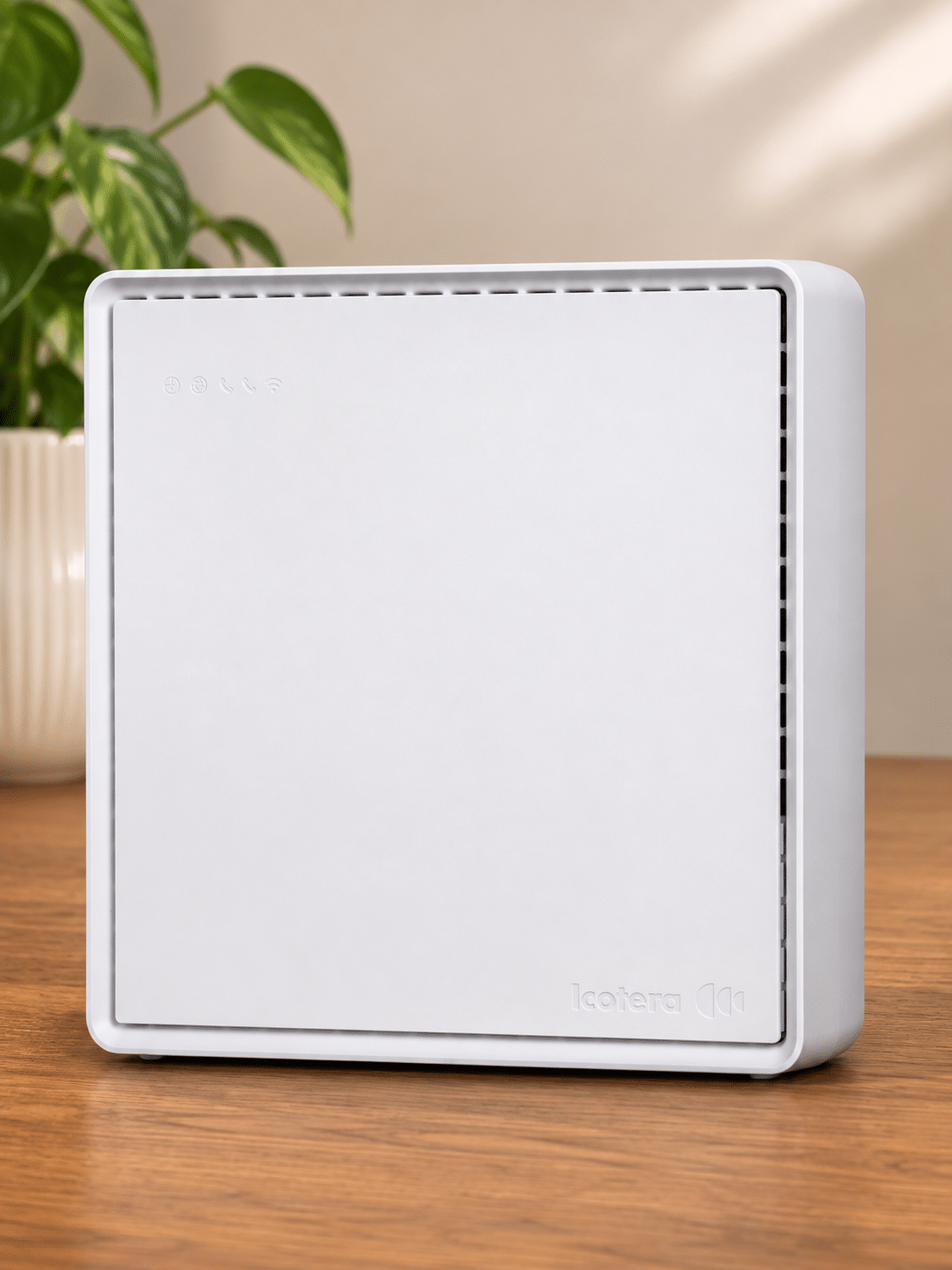
fibredog-fourth-utility-icotera-i4850-25-router

4th Utility's three routers aren't interchangeable. We'd be happy with the i4862 on most packages and would want the i4882 for 2.3Gbps; the older i4850-25 is harder to recommend. 4th Utility chooses the model without telling you in advance which one will arrive, even though the Wi-Fi standard and maximum wired speed vary between them. That uncertainty is why the score isn't higher.

7.3 /10
Overall score

Wi-Fi quality score

This score is based on the router’s Wi-Fi standard, frequency bands, device capacity and key wireless features such as beamforming, MU-MIMO and OFDMA.

Router range

How far Wi-Fi reaches depends on the router, where it's installed and the walls between it and your devices. 4th Utility gives no coverage estimate for any of its models, and you don't get to choose between them. In practice, the router's position and your home's layout are just as important as the model that turns up.

More antennas don't guarantee Wi-Fi in every room

The i4850-25 has six internal antennas, the i4862 has seven and the i4882 has 12. All three can focus the signal towards connected devices and avoid some busy Wi-Fi channels. The i4882 gives you the best chance of reaching the furthest rooms, but more antennas don't guarantee coverage everywhere. A router in a hallway cupboard still has to fight through doors, walls and distance, so a loft office or far bedroom may remain out of reach.

Walls and router position affect range more than antennas

A centrally placed router in the open usually reaches further than one hidden beside the front door or behind a television. Brick, stone, foil-backed insulation, mirrors and several floors all weaken Wi-Fi. The router can't remove those obstacles, no matter how many antennas it contains.

The i4882 is the best bet for a larger home

With 12 internal antennas, the i4882 is the model we'd want in a larger or busier home. The i4850-25 has half as many antennas and uses the older Wi-Fi 5 standard, so it's the least appealing of the three.

4th Utility doesn't say how many rooms or floors any router should cover, and it doesn't tell you which model you'll receive. Even the i4882 could struggle in a loft, extension or bedroom behind several walls. The router makes a difference, but its position and the shape of your home matter more.

4th Utility doesn't guarantee Wi-Fi around your home

4th Utility doesn't offer a mesh package, include an extender or promise a minimum Wi-Fi speed in every room. The routers work with extra Icotera Wi-Fi points, but 4th Utility doesn't sell or support them as a package. If one router doesn't reach every room, you'll have to buy and set up extra equipment or replace it with your own mesh system. The free bridge makes replacement easier, but the cost and setup are still yours.

INTERACTIVE TOOL

Router range estimator

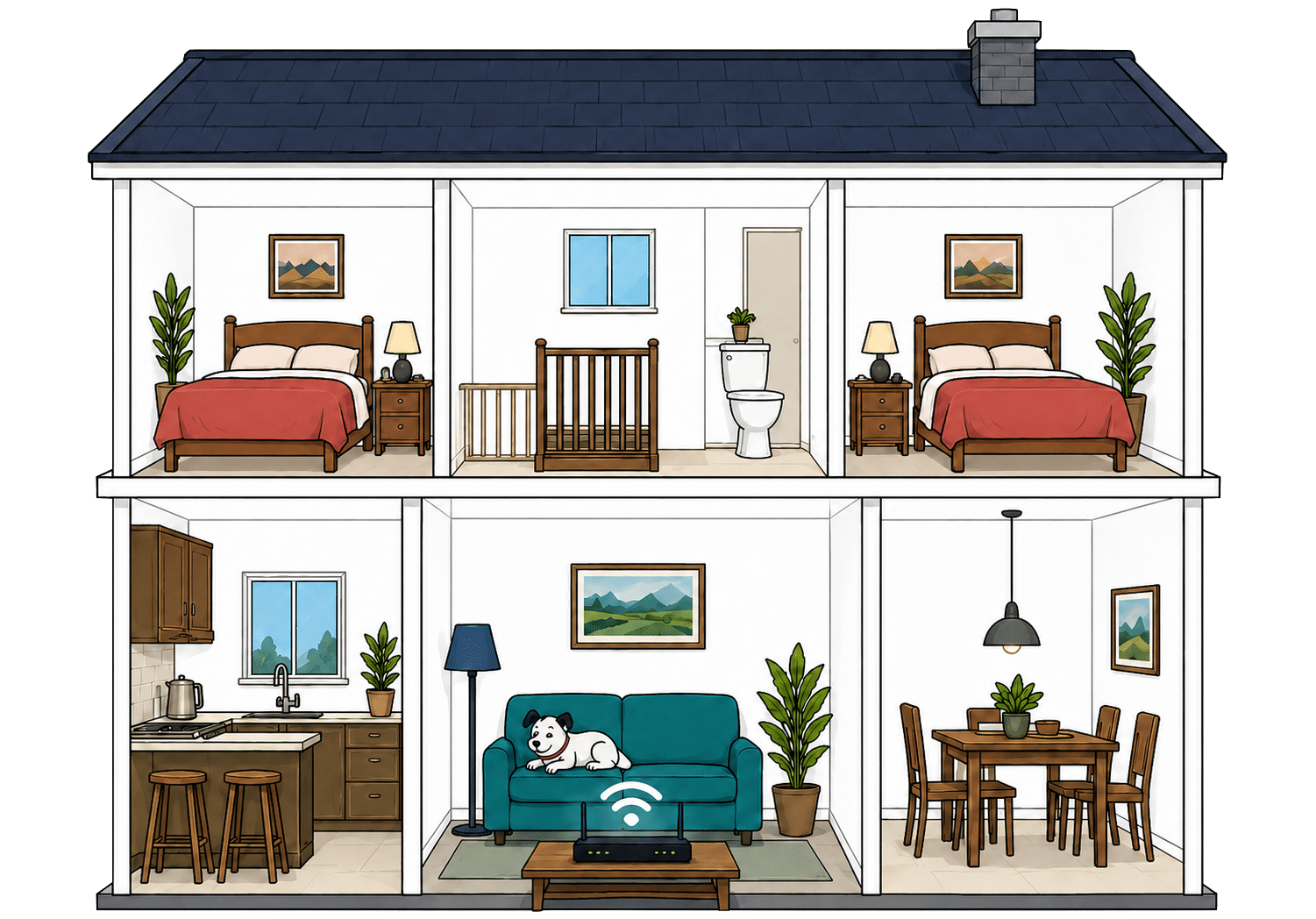
See how wall materials and router choice affect the quality of Wi-Fi around a typical home.
What are your internal walls mostly made from?
Which of these routers are you estimating?
Cutaway illustration showing connected devices throughout a family home
Perfect reception – strong, reliable Wi-Fi. Average reception – slower speeds may happen. Poor reception – weak signal or drop-outs.

Where would you like to go next?

Using the Router Range Estimator

Choose the Icotera router 4th Utility sent you, then select the main material used in the internal walls. The result is a rough estimate of how far Wi-Fi will reach, not a promise.

Neighbouring Wi-Fi, mixed wall materials, furniture and the router's position can all change the result. Use the estimate to spot likely problem rooms, then test those rooms once the service is running.

Getting the best range from your router

  1. Start with position

    Keep the router out in the open and as close to the middle of the home as the installed connection allows. Avoid cupboards and floor-level corners.

  2. Test every room

    Run a speed test where people actually use phones, televisions and laptops. A fast result beside the router doesn't prove the signal reaches upstairs.

  3. Open the browser controls

    4th Utility has no router app. The browser admin page shows connected devices and router settings, which helps you check which Wi-Fi band a phone, television or computer is using.

  4. Clear nearby obstacles

    Move the router away from televisions, mirrors, large metal objects and anything that boxes it in. Keeping the space around it clear gives the signal fewer obstacles.

  5. Add your own mesh

    If one router doesn't reach important rooms, add compatible mesh Wi-Fi or use a different router system. 4th Utility doesn't offer a mesh package of its own.

The two Wi-Fi bands behave differently

The 2.4GHz band travels further and passes through walls more easily, but it's slower and often busier because many household devices use it. It's useful for rooms further from the router and for devices that don't need much speed.

The 5GHz band is faster when you're near the router, which makes it a better fit for streaming, downloads and gaming. It loses more strength as it passes through walls, so a device in a distant room may fall back to 2.4GHz.

All three Icotera routers use those two bands. None uses the newer 6GHz band. That's no great loss for range because 6GHz has an even harder time crossing walls. It does mean newer devices can't use the quieter 6GHz band when they're close to the router.

One router should be enough for many smaller homes, especially if it's installed in the open near the middle. Larger homes are harder to judge because you can't choose the model, there's no coverage promise and 4th Utility won't sell you a mesh package if Wi-Fi falls short. You won't know whether one router is enough until the service is installed.

7.6 /10
Overall score

Router range score

This score estimates how well the provider’s standard routers are likely to deliver usable Wi-Fi speeds around a typical home, not just whether a faint signal reaches the back bedroom.

Whole-home Wi-Fi

One router is enough in plenty of homes, but larger properties often need several Wi-Fi points working together. That's where a provider should step in with a mesh package. 4th Utility doesn't sell one, so if the supplied router falls short, sorting out the weak rooms is up to you.

4th Utility leaves mesh to you

Each router works with an extra Icotera Wi-Fi point: the i4850-25 pairs with the i3550, while the i4862 and i4882 pair with the i3560. These extra units extend Wi-Fi into rooms the main router doesn't reach, but 4th Utility doesn't sell them, publish a price or help plan the setup.

You can also replace the supplied router with a separate mesh system. 4th Utility provides a free bridge that connects its broadband service to your own equipment, so the original router can be disconnected completely.

No extender or Wi-Fi guarantee comes with the package

Every package includes one router, chosen by 4th Utility. None includes an extra Wi-Fi point, and choosing a faster speed doesn't change that. If the signal doesn't reach a bedroom or loft, you'll have to pay for any extra equipment yourself.

4th Utility doesn't promise a minimum Wi-Fi speed in every room. If broadband is fast beside the router but poor elsewhere, 4th Utility hasn't promised to fix it. Its responsibility ends at the router, leaving you to choose and position any extra equipment needed around the home.

4th Utility doesn't sell a whole-home Wi-Fi upgrade

If moving the router doesn't solve the problem, you'll need to buy your own mesh system. You can add the Icotera Wi-Fi point designed for your router or replace the supplied router completely. 4th Utility makes replacement easier by providing a free bridge and putting the connection details in your online account. We like that flexibility, but you still have to choose and buy the equipment, set it up and deal with any problems with it yourself.

We wouldn't pay for more broadband speed to fix a Wi-Fi problem, because a faster package won't push the signal through another wall. Poor coverage can make a 2.3Gbps service feel slow in one room while a cheaper package feels fast beside the router. With no coverage guarantee from 4th Utility, you have to judge how much extra equipment you need. Buy too little and the weak spot remains; buy too much and you've wasted money.

Our Whole Home Wi-Fi Calculator helps you spot rooms where the signal is likely to be poor. Test the places where people actually work, stream and make calls, then use the results to judge whether another Wi-Fi point would help. The calculator can't account for every wall or neighbouring network, but it's a better guide than buying a faster package and hoping.

INTERACTIVE TOOL

Whole Home Wi-Fi Calculator

Just follow these simple steps and we will calculate how many, if any, ‘Whole Home Wi-Fi’ pods you will need from your provider.

Start here. Work through the steps in order.

Upload — Mbps
Latency — ms

Step 1: Agree to M-Lab’s data policy

M-Lab stores test data, including your IP address. Tick to agree before testing.

Step 2: Connect to your home Wi-Fi

Make sure the phone, tablet or laptop you are using is connected to your home Wi-Fi network.

Step 3: Turn mobile data off

If your device has mobile data, turn it off before you start walking around the house.

Step 4: Test next to your router

Stand next to your main Wi-Fi router and press the button below. This gives us your baseline speed.

Recorded result Router baseline
— Mbps

Step 5: Test your ground floor corners

Walk to each corner of your ground floor and run a test. If your home is not a perfect rectangle, do not overthink it. Just pick four sensible far-apart spots and keep the same numbering if you add another floor.

Corner 1 — Mbps
Corner 2 — Mbps
Corner 3 — Mbps
Corner 4 — Mbps

Last step: Add another floor or calculate

If you have another floor to test, add it below. If you have tested every floor you care about, press calculate.

Your Whole Home Wi-Fi result

Result waiting Run your tests, then press calculate.

    Where would you like to go next?


    Whole-home Wi-Fi in five points

    Find the weak room

    Test the bedroom, loft or extension where the supplied router's signal starts to fade.

    Use the calculator

    Find the rooms likely to have poor Wi-Fi before buying a mesh system or changing the broadband package.

    No extra Wi-Fi point is included

    4th Utility includes one router, but no package comes with a mesh unit or Wi-Fi extender.

    You pay for it

    You have to choose and pay for any compatible Wi-Fi point, mesh system or replacement router yourself.

    Fix coverage, not speed

    A faster package won't repair weak Wi-Fi in a room the router can't reach.

    If one router doesn't cover your home, 4th Utility leaves you to solve it. There's no included extender, mesh package or minimum Wi-Fi speed for each room. The free bridge makes it easy to use your own mesh system, but you still have to find the weak spots, buy the equipment and set it up. 4th Utility should be doing more to help.

    3.6 /10
    Overall score

    Whole-home Wi-Fi score

    This score estimates how well the provider helps customers fix Wi-Fi weak spots around the home, including mesh support, mesh devices, app control, Wi-Fi guarantees and router capability.

    Wired connectivity

    Most devices connect by Wi-Fi, but a cable still gives a desktop computer or games console the fastest and most stable link to the router. How many devices you can plug in, and how fast they can go, depends on which model 4th Utility sends. On the 2.3Gbps package, only one of the three routers lets a single wired device use more than 1Gbps.

    Two routers stop each wired device at 1Gbps

    The i4850-25 has four Gigabit Ethernet ports you can use, while the i4862 has three. That's enough for several wired devices, such as a television, games console, desktop computer or network switch. Each port handles the full speed of packages up to 900Mbps.

    A Gigabit Ethernet port can't deliver more than 1Gbps to one device. That won't matter on packages up to 900Mbps because the broadband itself is slower. It becomes important on the 1Gbps and 2.3Gbps packages, especially if you're buying the fastest service to move very large files on one computer.

    Only the i4882 gives one device more than 1Gbps

    The i4882 has one 2.5Gb Ethernet port for a computer or network switch and another that connects the router to 4th Utility's service. A computer with a 2.5Gb Ethernet port can receive more than 1Gbps. The other two routers can't do that, no matter which package you buy.

    4th Utility doesn't promise the i4882 with the 2.3Gbps package. Several devices can share the package's full speed, but no single wired device can exceed 1Gbps if the i4850-25 or i4862 arrives. If you're paying for the fastest package, you shouldn't have to hope for the only router that lets one device use more than 1Gbps.

    Illustration of Fibo comparing different wired network connections

    How a simple wired 4th Utility network works

    Plugging devices directly into your router gives them a steadier connection than Wi-Fi. These router diagrams show the physical Ethernet ports, including any ONT or internet port used by the broadband connection itself.

    Icotera i4850-25
    1 ONT / internet port 1Gbps
    4 usable ports 1Gbps 1Gbps each
    Icotera i4862
    1 ONT / internet port 1Gbps
    3 usable ports 1Gbps 1Gbps each
    Icotera i4882
    1 ONT / internet port 2.5Gbps
    1 usable port 2.5Gbps 2.5Gbps
    2 usable ports 1Gbps 1Gbps each
    ★

    Use a wired connection for TVs, consoles and computers that stay in one place.

    ✓

    Use the fastest spare LAN port for the device or switch that needs the most speed.

    Ethernet still gives important devices the steadiest connection

    A wired connection avoids the walls, distance and interference that make Wi-Fi speeds vary. Games consoles, work computers and network storage benefit most because a cable gives them a steady connection to the router.

    You don't need to wire every device. Use the available ports for equipment that stays near the router, especially when a dropped connection would interrupt a game, call or large download. Phones and tablets are made for Wi-Fi, and most televisions work well over a reliable wireless connection.

    The exact number of ports depends on the router 4th Utility sends you. The i4850-25 has four Gigabit Ethernet ports, the i4862 has three and the i4882 has two Gigabit ports plus one faster 2.5Gb Ethernet port.

    If those ports aren't enough, an Ethernet switch adds more wired sockets. Every device connected to the switch still shares the speed of the one router port.

    How to get the most from 4th Utility's Ethernet ports

    1. Count the available ports

      The model 4th Utility sends you has four, three or two Gigabit Ethernet ports, plus the i4882's single faster port.

    2. Gigabit ports suit packages up to 900Mbps

      Every supplied router can give one wired device the full speed of any 4th Utility package up to 900Mbps.

    3. The 2.3Gbps package needs the i4882

      Only the i4882 has a 2.5Gb Ethernet port. The other routers cap each wired device at 1Gbps, even on the fastest service.

    4. Wire the busiest devices

      Give the wired ports to a games console, desktop computer, work laptop dock or network storage before using one for equipment that already works reliably over Wi-Fi.

    5. Add an Ethernet switch

      A switch creates more wired sockets when every port on the router is occupied. The connected devices still share the speed of the original router port.

    With a package up to 900Mbps, all three routers can give one wired device the full speed and have enough ports for a typical home. Move up to 2.3Gbps, though, and only the i4882 can give one device more than 1Gbps. 4th Utility doesn't promise to send it. That's not a small technicality: if either of the other routers arrives, no wired device can use the full speed you've bought.

    7.4 /10
    Overall score

    Wired connectivity score

    This score looks at how useful the router is if you want to plug devices in with cables, including the number of Ethernet ports, port speeds, phone ports and whether the router has the right connection for the network it uses.

    Router controls

    Most people only need a few router controls: a way to see what's connected, change the Wi-Fi password, set up a guest network and apply parental controls. 4th Utility puts those basics in a browser rather than an app. That's fine for occasional changes, but less convenient when you want to check something quickly.

    You manage the router in a web browser

    You manage the supplied router through a page in your web browser. From there, you can check connected devices, change Wi-Fi settings, create guest Wi-Fi and use parental controls without contacting 4th Utility. That covers the jobs most households are likely to need.

    There's no 4th Utility router app, so you need a web browser and the router login whenever you want to change a setting or check what's connected.

    All three routers install security updates automatically and can switch to a less crowded Wi-Fi channel. They also let you control how the connection is shared between devices, but 4th Utility doesn't publish a complete list of the settings customers can use. That's frustrating if you need a particular setting.

    The controls most homes need are included

    Guest Wi-Fi keeps visitors away from the main home network, while parental controls help limit what children can access online. WPA3 security is available on the two Wi-Fi 6 models, and all three install updates automatically. Once everything is set up, most households should rarely need to open the controls again.

    Gaming and work profiles are missing from every supplied router

    There's no gaming mode, automatic game priority or work-from-home profile. 4th Utility also doesn't give you a simple way to make one device the permanent priority. Most households won't need those options, but keen players and home workers may want finer control.

    The routers support manual QoS, which lets you control how they share the connection between different types of traffic. 4th Utility doesn't say how much control customers get. We'd rather see a proper list than make people find out after installation. If a setting you need isn't available, the free bridge and online connection details make using your own router easy.

    For most homes, these controls cover what's needed. You get guest Wi-Fi, parental controls, a firewall and automatic updates. Quick changes would be easier with an app, and there are no gaming or work profiles. If you need more control, 4th Utility makes it easy to use your own router instead.

    Router controls

    4th Utility router controls at a glance

    Here’s a quick look at the router controls you can expect, including app management, browser admin tools, Wi-Fi settings, security features and the physical buttons on the router itself.

    App management App-based controls Unavailable
    Browser admin page Browser-based controls Available
    Parental controls Household controls Available
    Guest network Separate guest Wi-Fi Available
    QoS Traffic priority controls Available
    Device prioritisation Per-device priority Unavailable
    Smart channel selection Wi-Fi optimisation Available
    Security features Built-in security notes Available
    Automatic updates Firmware updates Available
    WPS Push-button pairing Available
    Reset button Physical reset control Available
    Wi-Fi on/off button Physical Wi-Fi control Unavailable

    Checked from manufacturer specifications. Fibredog tracks dozens of router specification parameters across dozens of provider routers. When a provider changes its router or features, this table is swiftly updated.

    What stands out

    • Browser controls

      The browser admin page covers connected devices, Wi-Fi settings, guest access and parental controls without needing a provider app.

    • Useful household basics

      All three routers include guest Wi-Fi, parental controls, a firewall and automatic firmware updates.

    • No gaming or work profiles

      There's no gaming mode, work profile or automatic device priority for people who want finer control.

    4th Utility gets the everyday controls right. You can manage connected devices, Wi-Fi settings, guest access and parental controls in a browser, and security updates happen automatically. An app would make quick changes easier, but most homes won't miss the gaming and work profiles. Anyone who wants more control can use their own router without paying for a bridge or asking support for connection details.

    7.8 /10
    Overall score

    Router controls score

    This score looks at how easy the router is to manage, including app support, browser settings, parental controls, guest Wi-Fi, security features, updates and physical buttons.

    Using your own router

    Some people replace a provider's router to improve Wi-Fi, add faster Ethernet ports or keep a mesh system they already own. That often means hunting down connection details and working out how to connect without the provider's router. 4th Utility avoids most of that hassle: it gives you a free bridge and lets you disconnect its router completely.

    How to use your own router with 4th Utility

    Check your router has the right connections

    Your router must be able to connect by Ethernet and use a PPPoE broadband connection. On the 2.3Gbps package, it also needs ports faster than 1Gbps if you want one wired device to use more than gigabit speed.

    Ask 4th Utility for the free bridge

    4th Utility supplies the bridge without charge. It connects the broadband service to the router you choose.

    Request it before changing anything so it's ready when you connect the new router.

    Connect your router by Ethernet

    Run an Ethernet cable from the 4th Utility bridge to the internet port on your own router.

    Your router then provides the Wi-Fi and wired connections. You also use its controls to manage the devices connected to it.

    Enter the PPPoE details

    Open your 4th Utility online account and find the PPPoE username and password for the broadband service.

    Enter those details in the new router's internet settings. The wording differs between manufacturers, so use the router's own instructions if you can't find where to enter them.

    Test it before putting everything away

    Check a wired device first, then test Wi-Fi in the rooms where people normally use it.

    Keep the router 4th Utility supplied. Its support team may ask you to reconnect it while checking whether the fault is with the broadband or your own equipment.

    4th Utility lets you use your own router, but it isn't responsible for equipment it didn't supply. If broadband reaches the bridge but your router doesn't work, you'll need help from the manufacturer rather than 4th Utility.

    4th Utility makes replacing its router easy

    The free bridge lets your own router run the whole home network. It connects your equipment directly to 4th Utility's broadband service, so the supplied Icotera router can be disconnected completely. Your own router then provides the Wi-Fi and wired connections.

    That's especially useful when the supplied router doesn't suit the package. If you have 2.3Gbps broadband but receive an i4850-25 or i4862, you can choose a router with faster Ethernet ports. If Wi-Fi doesn't reach every room, you can use a mesh system instead. 4th Utility doesn't trap you with the router it sends or charge for the bridge needed to replace it.

    Get the details online

    4th Utility puts the PPPoE username and password in your online account. That saves you calling support to ask for the connection details. You can find them before unplugging anything and enter them directly in the new router.

    Once your router is connected, 4th Utility remains responsible for the broadband service while you handle the router's settings, Wi-Fi and updates. Keep the supplied Icotera router somewhere safe so you can reconnect it if support needs to check whether a fault comes from the broadband or your equipment.

    Replace it for a clear reason, not from habit

    Most people won't need to replace the supplied Icotera router. All three handle everyday browsing, streaming and calls, and the Wi-Fi 6 models will suit plenty of homes. If the router reaches every room and has enough ports, changing it creates work without solving a problem.

    Replacing the router is worth the work when it solves a specific problem. You might need faster Ethernet on the 2.3Gbps package, mesh Wi-Fi for distant rooms, an app, automatic device priority or more detailed parental controls. If the supplied router already does everything you need, there's no reason to replace it.

    Six reasons to use your own router

    You need faster Ethernet

    A router with a 2.5Gb Ethernet port lets a computer with the same port use more than 1Gbps when 4th Utility doesn't send the i4882.

    You already own mesh Wi-Fi

    You can keep the mesh system you already use instead of rebuilding the home network around whichever Icotera router 4th Utility sends you.

    You want specialist controls

    Your own router can add automatic device priority, gaming controls or detailed traffic rules missing from the supplied models.

    You prefer different parental controls

    Some routers offer individual child profiles, clearer schedules or controls your household already understands.

    You want to keep your network

    Reusing the same Wi-Fi name and password can save reconnecting every phone, television, speaker and smart device after switching provider.

    You want an app

    4th Utility has no router app, while many third-party systems make everyday changes easier from a phone.

    fibredog-fourth-utility-icotera-i4850-25-router

    What changes when you use your own router

    The free bridge connects your router to 4th Utility's broadband service. You can unplug the supplied Icotera router completely. Your own router then provides Wi-Fi and handles every wired and wireless connection in the home.

    The ONT

    The bridge connects your router to broadband

    The bridge connects 4th Utility's broadband service to your own router, so the supplied Icotera model no longer runs the home network.

    Your router connects to the bridge by Ethernet and uses the PPPoE details from the 4th Utility online account.

    Your own router

    Your router runs the home network

    Your own router handles Wi-Fi, wired devices, guest access, parental controls, security updates and any specialist settings included by its manufacturer.

    You gain control over those features, but you also become responsible for setting them up and fixing problems that don't come from 4th Utility's broadband service.

    4th Utility does almost everything we'd ask here. It gives you the bridge without charge, puts the connection details in your online account and lets you disconnect its router completely. You can replace an unsuitable model with a mesh system, more detailed controls or the faster Ethernet ports needed for 2.3Gbps broadband. You'll have to set up the new router and fix any problems with it yourself, but that's fair when you've chosen the equipment. 4th Utility gives you everything needed to make the switch.

    9.7 /10
    Overall score

    Using your own router score

    This score reflects how well the provider supports third-party router use, including ONT or modem-mode setup, WAN port speed, connection type and how cleanly your own router can take over the home network.

    Some links on this page may earn us a small commission if you click through and buy. This never affects either what you pay, or our scores and recommendations. If, however, you’d rather bypass affiliate links, use this direct 4th Utility link instead.

    Illustration of Fibo representing direct links to broadband providers