
SKY BROADBAND ROUTERS AND EQUIPMENT REVIEW

Sky Broadband routers review: How good are they?

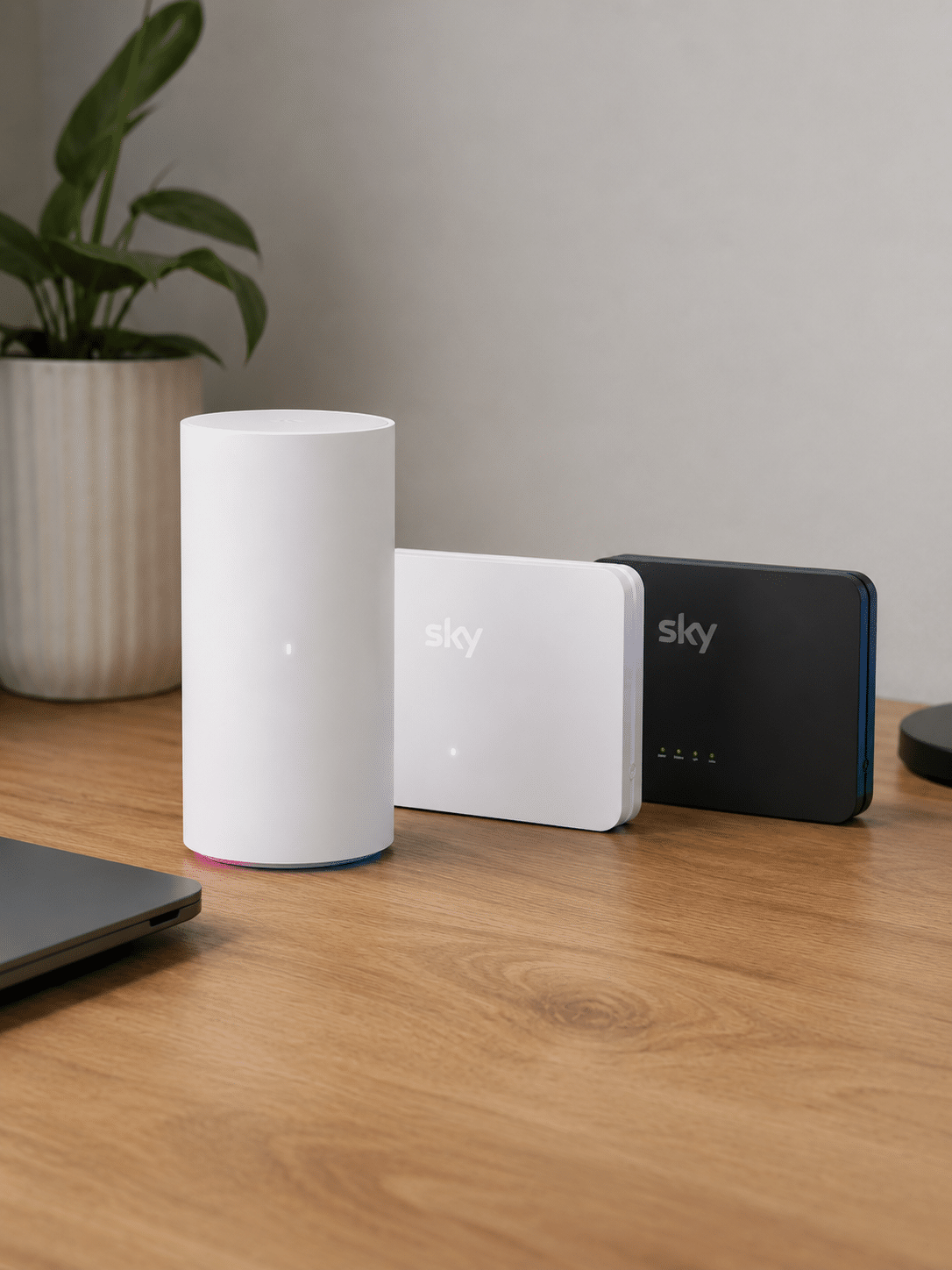
Sky Broadband is one of the few providers who currently offers three different routers, no less. Which one you get will depend on which package and extras you pick, and they are all considerably different from one another. So let’s take a closer look.

By Data checked  Checked weekly
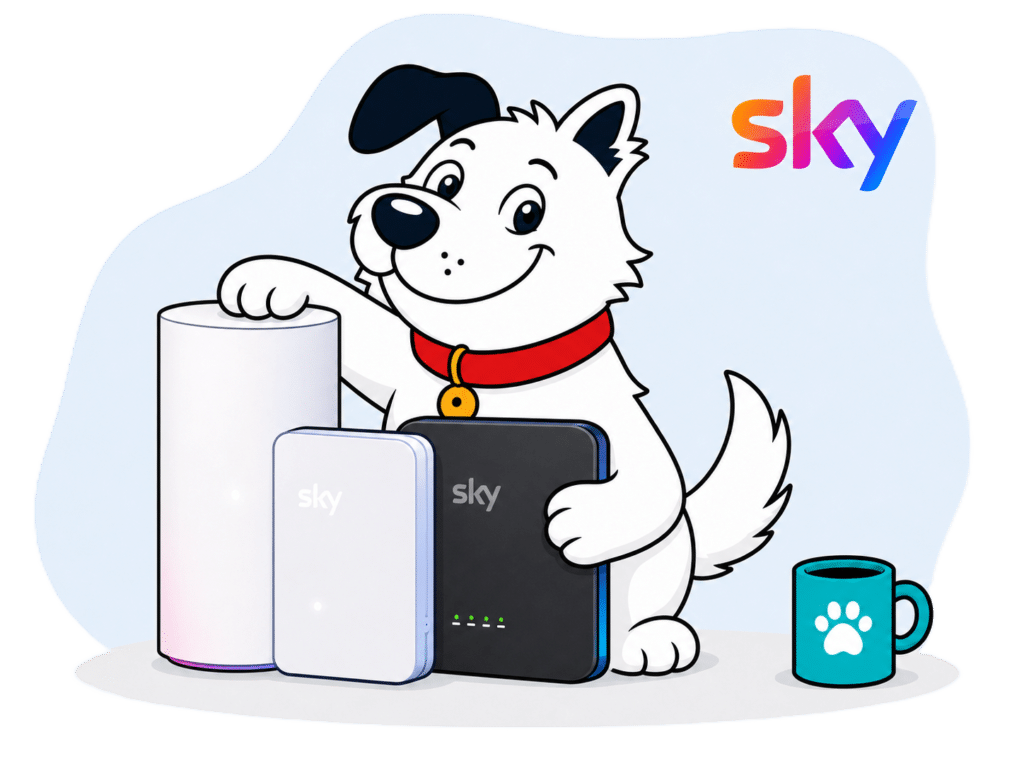
The fibredog dog mascot clutching all three of the sky broadband routers currently available
fibredog mascot wearing a headset

Having trouble choosing a broadband provider?

No single best provider or package exists – only the best pick for you personally. Fibredog’s YourMatch™ system uses thousands of provider metrics and a lot of maths to find you your perfect match.

Sky Broadband routers and equipment scorecard

Six key areas. One overall score. All calculated using our transparent methodology.

Wi-Fi quality

How good the standard routers’ Wi-Fi is in everyday use, looking at specifications, Wi-Fi bands/type, and how many devices they can support.

6.6/10

Wi-Fi range

How far the router’s Wi-Fi should reach around the home, with consideration given to local factors like large homes or thick walls.

7.2/10

Whole-home Wi-Fi

Whether the provider offers a mesh router system or extra help for larger homes, whether it’s good, and whether it’ll cost you extra.

7.2/10

Wired connectivity

How well the router supports Ethernet and wired devices, looking at number of ports, their speeds, and how accessible they are.

7.9/10

Router controls

How much control you get through the app, admin page and any controls you might have on the router itself.

6.3/10

Using your own router

How easily you can use your own third-party router or mesh hardware – whether you can use anything you like or if it’s limited in any way.

9.8/10

Wi-Fi quality

Sky has three current Full Fibre routers, but they don’t form a simple good, better, best choice at checkout. Your package and add-ons decide which one you get, while the excellent Wi-Fi 7 Gigafast+ Hub is reserved for two broadband speeds almost nobody actually needs.

Key differences

The Sky Broadband Hub is showing its age

The standard Sky Broadband Hub uses Wi-Fi 5, making it the oldest wireless technology supplied by any of Sky’s three routers. It supports up to 64 devices and has four Gigabit Ethernet ports, but there’s no WPA3, 6GHz Wi-Fi or customer-configurable guest network. It will do the job for an ordinary home, but it’s well behind the latest hardware.

WiFi Max provides the realistic upgrade

Adding WiFi Max to an eligible Full Fibre package gets you the Sky Max Hub. This moves you to Wi-Fi 6, WPA3, app management, device prioritisation and support for up to 120 connected devices. You can also receive up to three Sky Max Pods if Sky’s Wi-Fi guarantee isn’t met. For most homes, this is the Sky router worth having.

Wi-Fi 7 is locked behind enormous speeds

The Sky Gigafast+ Hub is a serious piece of hardware. It has tri-band Wi-Fi 7, 6GHz Wi-Fi, two 10Gbps Ethernet ports and support for up to 300 devices. The catch is that Sky only supplies it with Full Fibre 2.5 Gigafast+ and Full Fibre 5 Gigafast+. Nobody needs that much broadband speed, especially simply to get a better router.

All three routers miss a basic feature

None of Sky’s residential routers provides a customer-configurable guest network. That’s an unusual omission, particularly from the expensive Gigafast+ Hub. Sky gives you profiles, schedules, parental controls, device management and prioritisation, but it doesn’t let you create a separate Wi-Fi network for visitors.

INTERACTIVE TOOL

Compare routers from any provider

This provider’s routers are pre-selected for comparison with one another. However, you can use this tool to compare any router from any major provider using the dropdown menus below.

Feature Choose router Choose router
Fibredog rating
Router included as standard
Router manufacturer
Router model
Wi-Fi standard
Wi-Fi bands
2.4GHz supported
5GHz supported
6GHz supported
Beamforming
Antenna count
Maximum connected devices
Stated coverage
Total Ethernet ports
MU-MIMO
OFDMA
WPA3 security
Guest network
Antenna type
Gigabit Ethernet ports
2.5Gb Ethernet ports
5Gb Ethernet ports
10Gb Ethernet ports
WAN port speed
USB ports
Telephone ports
ONT Ethernet input
Coaxial input
Power connection
Mesh support
Provider mesh product
Third-party router use
Modem mode
Compatible broadband technology
App management
Parental controls
QoS
Automated QoS
Device prioritisation
Anti-bufferbloat controls
Manual queue management (SQM/CAKE)
Smart channel selection
Security features
Gamer mode
Game traffic prioritisation
Gaming QoS profiles
Server ping routing tools
Latency dashboards
Per-device gaming presets
Gaming VPN routing features
Work from home mode
Automatic firmware updates
Firmware update notes
Router height
Router width
Router depth
Router weight
Power consumption
Router orientation
Wall mountable
Router colour
Self-installation
Browser admin interface
WPS
Status light control
Reset button
Wi-Fi on/off button
Where would you like to go next? See all tools See all tools

Which Sky Broadband router do you get?

Sky Broadband Hub

Included with Sky’s ordinary Full Fibre packages.

It uses dual-band Wi-Fi 5, has four Gigabit Ethernet ports and supports up to 64 connected devices.

Sky Max Hub

Supplied with WiFi Max on eligible packages.

The realistic upgrade adds dual-band Wi-Fi 6, WPA3, app management and support for around 120 devices.

Sky Gigafast+ Hub

Only included with 2.5Gbps and 5Gbps Gigafast+.

It brings tri-band Wi-Fi 7, 6GHz Wi-Fi, two 10Gbps Ethernet ports and support for up to 300 devices.

Wi-Fi quality across Sky’s three hubs

The standard Sky Broadband Hub is adequate, but Wi-Fi 5 looks increasingly dated. It has eight internal antennas, beamforming, automatic updates, four Gigabit Ethernet ports and capacity for up to 64 devices. Most homes can use it perfectly well, but there’s little here to get excited about.

The Sky Max Hub is the sensible step up. Wi-Fi 6, WPA3, support for around 120 devices and My Sky app management make it substantially more modern. It also works with Sky Max Pods and the WiFi Max guarantee. The problem is that you need WiFi Max to get it on an ordinary Full Fibre package, and that'll cost you.

Sky’s Gigafast+ Hub sits at the opposite extreme. Tri-band Wi-Fi 7, a 6GHz band, WPA3, two 10Gbps Ethernet ports and capacity for up to 300 devices make it one of the most capable provider routers available. Unfortunately, it’s tied to Sky’s 2.5Gbps and 5Gbps CityFibre packages which few can get and even fewer actually need. Those speeds are spectacular, but come on! What on earth is anyone going to practically do with 2.5 to 5Gbps?

Sky has excellent router technology, but without making it sensibly available across the range. Most people must either therefore accept the old Wi-Fi 5 hub or pay for WiFi Max to reach Wi-Fi 6. The Wi-Fi 7 hub is outstanding, but buying several gigabits of unnecessary broadband just to obtain it would be completely bonkers.
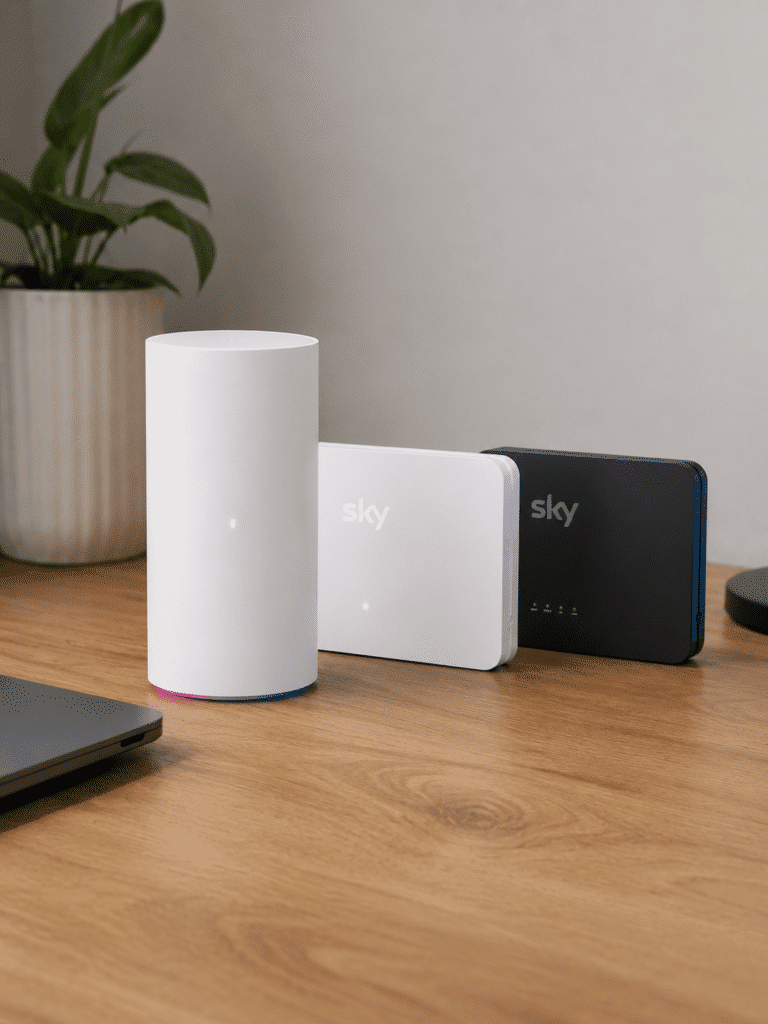
Skys three routers fibredog

Sky's router range stretches from a dated Wi-Fi 5 hub to one of the best provider routers available. WiFi Max offers a worthwhile Wi-Fi 6 upgrade for ordinary packages, while the superb Gigafast+ Hub adds Wi-Fi 7, 6GHz Wi-Fi and 10Gbps Ethernet. The hardware ceiling is exceptional, but locking it behind 2.5Gbps and 5Gbps packages makes it irrelevant to most homes.

6.6 /10
Overall score

Wi-Fi quality score

This score is based on the router’s Wi-Fi standard, frequency bands, device capacity and key wireless features such as beamforming, MU-MIMO and OFDMA.

Router range

A router’s Wi-Fi range decides how far its signal will travel before speeds begin to drop or the connection cuts out. Walls, floors, interference and where you place the hub all make a difference, so we’re looking at how well Sky’s routers cover the average home and what help is available where the signal falls short.

All three Sky hubs have eight antennas, but...

Eight internal antennas sounds encouraging, but the three routers are otherwise very different. The ordinary Sky Broadband Hub uses Wi-Fi 5 and supports up to 64 devices. The Sky Max Hub moves to Wi-Fi 6 and supports around 120. The Gigafast+ Hub gets tri-band Wi-Fi 7 and raises the device limit to 300.

That gives Sky a proper progression rather than one router for everything. The catch is that the best hardware is tied to packages most homes don’t need. Unless you can get and justify 2.5Gbps or 5Gbps broadband, the Gigafast+ Hub is out of reach.

Your walls still matter more than the router

A better router helps, but it can’t change the laws of physics. Thick walls, old brick, stone, insulation, mirrors and distance all make Wi-Fi work harder. The Sky Max Hub is a useful improvement over the ordinary Broadband Hub, but a long or heavily divided home may still need Max Pods to get dependable coverage everywhere.

6GHz is excellent nearby, not across the house

Only the Sky Gigafast+ Hub has 6GHz Wi-Fi. That gives compatible Wi-Fi 6E and Wi-Fi 7 devices a less congested, faster band when they’re reasonably close to the router. Most existing phones, laptops and TVs can’t use it though, so it won’t magically transform every device in your home.

The other limitation is range. 6GHz loses power through walls faster than 5GHz or 2.4GHz, so it’s best thought of as extra speed nearby rather than a whole-home coverage fix. Further away, even newer devices will usually fall back to one of the lower-frequency bands.

WiFi Max is Sky’s range sweet spot, but it costs extra

Sky’s whole-home system is WiFi Max. It's included with the 2.5Gbps and 5Gbps Gigafast+ packages. Adding it can also move you from the ordinary Broadband Hub to the better Wi-Fi 6 Sky Max Hub.

You don’t automatically receive any Max Pods. If your Wi-Fi fails to meet Sky’s room-by-room guarantee, Sky can provide up to three on loan at no extra cost if you're subscribed to WiFi Max. It's a sensible way to fix genuine coverage problems, although the guarantee and mesh equipment sit behind an additional monthly charge.

INTERACTIVE TOOL

Router range estimator

See how wall materials and router choice affect the quality of Wi-Fi around a typical home.
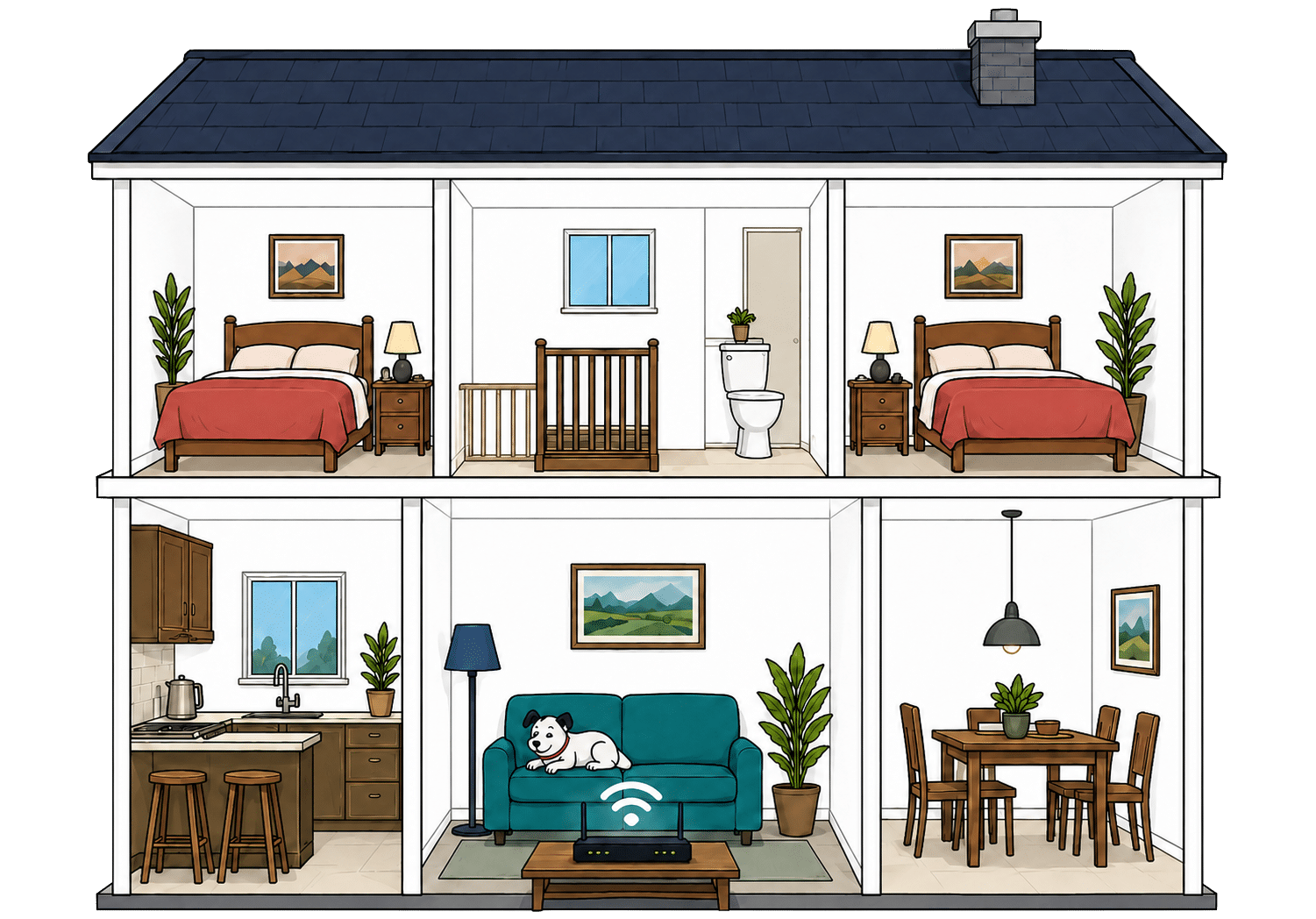
What are your internal walls mostly made from?
Which of these routers are you estimating?
Perfect reception – strong, reliable Wi-Fi. Average reception – slower speeds may happen. Poor reception – weak signal or drop-outs.

Where would you like to go next?

How to use the Router Range Estimator

It’s pretty straightforward. Select the router from this provider, and the main construction materials of your internal walls. It’s important to remember, though, that this is just an estimator.

It can give you a rough idea, but local factors like neighbouring network interference or mixed material wall set-ups can mean the results vary considerably from the estimate. It’s meant to give you a rule of thumb and only that.

How to maximise your Sky router's range

  1. Start with placement

    Put your Sky hub near the middle of your home if you can, out in the open and away from thick walls or cupboards.

  2. Test every room

    Run a speed test where you actually use Wi-Fi. Our Whole Home Wi-Fi Calculator further down this page is built for exactly that.

  3. Use the My Sky app

    Check your hub and connected devices in the My Sky app. It can help you find weak rooms before you start moving furniture around blindly.

  4. Move obvious blockers

    Keep the hub away from TVs, mirrors, metal objects, appliances and anything that boxes it in. Give the signal space to leave the router.

  5. Add WiFi Max if needed

    If some rooms still struggle, WiFi Max can provide up to three Max Pods when your Wi-Fi fails to meet Sky's room-by-room guarantee.

Faster Wi-Fi has shorter legs

Wi-Fi behaves exactly like sound. Ever notice how you hear the bass, meaning the low frequencies, a few rooms away, but can't hear the treble? It's the same here. The higher the frequency, the more detail there is in the signal, but lower frequencies make it through far more walls.

That's the difference between Wi-Fi bands. 2.4GHz is the slow old workhorse. It isn't glamorous or especially quick, but it's better at reaching the awkward room at the back. 5GHz is faster and better for streaming, gaming and newer devices, but it gives up sooner as you move away from the router.

Sky's router range runs from Wi-Fi 5 to Wi-Fi 7. All three hubs use 2.4GHz and 5GHz, while the Gigafast+ Hub also adds 6GHz. That new band can be extremely fast nearby, but it has the shortest range. WiFi Max and its Max Pods are what actually extend coverage into difficult rooms.
All three hubs use eight antennas and should cover many average-sized homes, but the standard Broadband Hub’s older Wi-Fi 5 technology holds it back. WiFi Max improves coverage with a Wi-Fi 6 hub and up to three Max Pods, although getting the best whole-home range means paying extra.

7.2 /10
Overall score

Router range score

This score estimates how well the provider’s standard routers are likely to deliver usable Wi-Fi speeds around a typical home, not just whether a faint signal reaches the back bedroom.

Whole-home Wi-Fi

Sky’s answer to weak Wi-Fi is WiFi Max. It combines a better router, a room-by-room Wi-Fi guarantee and access to Max Pods for where the hub can’t reach. The question is whether your home needs it, because ordinary Full Fibre packages don’t include WiFi Max and simply buying faster broadband won’t fix a room with poor signal.

What is Sky WiFi Max?

Sky WiFi Max is the provider’s whole-home Wi-Fi add-on. On ordinary Full Fibre packages, it can replace the basic Sky Broadband Hub with the Wi-Fi 6 Sky Max Hub. It also adds a room-by-room Wi-Fi guarantee, Sky Device Priority, Sky Advanced Security, and more flexible engineer visits.

If the Sky Max Hub still can’t meet the guarantee, Sky will provide up to three Max Pods on loan at no extra cost with this add-on. The pods give the signal another place to jump from rather than expecting one router to fight its way through every wall by itself.

Sky doesn’t include WiFi Max with every package

Most Sky Full Fibre packages don’t include WiFi Max. It costs extra every month, and no Max Pods arrive automatically when you add it. Sky provides them only if your Wi-Fi fails to meet the Sky WiFi Max Guarantee.

This is where speed upgrades can fool you. Weak Wi-Fi doesn’t care how fast the connection reaching your hub is. If thick walls or distance are killing the signal, moving from a 150Mbps package to a 500Mbps one won’t make that distant room any easier to reach.

WiFi Max is Sky’s range upgrade, as well as some other things

Sky does at least give you a proper router upgrade. Adding WiFi Max to an ordinary package can move you from the dated Wi-Fi 5 Sky Broadband Hub to the much better Wi-Fi 6 Sky Max Hub. It's a better starting point before any mesh equipment enters the picture.

If the Max Hub still can’t cover your home, Sky will provide up to three Max Pods. You don’t buy them individually, and Sky doesn’t simply hand over three as soon as you subscribe. Rather, they're loaned to you as required when the Wi-Fi guarantee isn’t being met.

WiFi Max is included with Sky’s 2.5Gbps and 5Gbps Gigafast+ packages, but those speeds are absurd for almost every home. For everyone else, whole-home coverage remains a paid extra.

Sky’s whole-home Wi-Fi system is excellent once you have it. WiFi Max provides a better Wi-Fi 6 router, a room-by-room guarantee and up to three Max Pods where signal coverage falls short. Problem is, most ordinary Full Fibre packages don’t include it. Sky has arguably put its best selling points behind another subscription, which for many won't be considered 'optional'.

INTERACTIVE TOOL

Whole Home Wi-Fi Calculator

Just follow these simple steps and we will calculate how many, if any, ‘Whole Home Wi-Fi’ pods you will need from your provider.

Start here. Work through the steps in order.

Upload Mbps
Latency ms

Step 1: Agree to M-Lab’s data policy

M-Lab stores test data, including your IP address. Tick to agree before testing.

Step 2: Connect to your home Wi-Fi

Make sure the phone, tablet or laptop you are using is connected to your home Wi-Fi network.

Step 3: Turn mobile data off

If your device has mobile data, turn it off before you start walking around the house.

Step 4: Test next to your router

Stand next to your main Wi-Fi router and press the button below. This gives us your baseline speed.

Recorded result Router baseline
Mbps

Step 5: Test your ground floor corners

Walk to each corner of your ground floor and run a test. If your home is not a perfect rectangle, do not overthink it. Just pick four sensible far-apart spots and keep the same numbering if you add another floor.

Corner 1 Mbps
Corner 2 Mbps
Corner 3 Mbps
Corner 4 Mbps

Last step: Add another floor or calculate

If you have another floor to test, add it below. If you have tested every floor you care about, press calculate.

Your Whole Home Wi-Fi result

Result waiting Run your tests, then press calculate.

    Where would you like to go next?


    Sky WiFi Max: The basics

    Find the weak room

    WiFi Max is for the places where the signal from your Sky hub runs out of puff.

    Use our calculator above

    Check likely Wi-Fi blackspots before you pay for a faster package or extra kit.

    Not standard on every package

    Most ordinary Sky Full Fibre packages don’t include WiFi Max or any Max Pods.

    Usually a paid extra

    WiFi Max costs extra every month, which is bad news if you actually need it.

    Coverage, not raw speed

    Max Pods help Wi-Fi reach distant rooms. They don’t make the broadband entering your home any faster.

    Sky’s whole-home Wi-Fi system is quite excellent once you have it. WiFi Max provides a better router, a room-by-room guarantee, and up to three Max Pods for anywhere the Wi-Fi signal falls short. The problem is, most packages don’t include it. Sky has essentially put some of its best features behind a paywall, which would be easier to stomach if it weren't for the fact you get a very long-in-the-tooth Wi-Fi 5 router if you don't pay for the add-on.

    7.2 /10
    Overall score

    Whole-home Wi-Fi score

    This score estimates how well the provider helps you fix Wi-Fi weak spots around the home, including mesh support, mesh devices, app control, Wi-Fi guarantees and router capability.

    fibredog mascot wearing a headset

    Having trouble choosing a broadband provider?

    No single best provider or package exists – only the best pick for you personally. Fibredog's YourMatch™ system uses thousands of provider metrics and a lot of maths to find you your perfect match.

    Wired connectivity

    Most people won’t spend much time thinking about the sockets on the back of their router, and fair enough. Wi-Fi handles most everyday jobs. Wired connections still matter when you want the steadiest possible link for a games console, desktop PC, network switch or NAS. What Sky gives you depends heavily on which of its three hubs you receive.

    Sky’s ordinary hubs are fine for packages up to 900Mbps

    The Sky Broadband Hub and Sky Max Hub each have four Ethernet sockets. On Full Fibre, one connects the hub to the ONT, leaving three Gigabit Ethernet ports for your own devices. That means a TV, games console and desktop PC can all plug in directly.

    That isn’t a problem on Sky’s ordinary Full Fibre range, which tops out at around 900Mbps. A Gigabit Ethernet port can carry that speed, and 900Mbps is still ridiculously quick in normal-home terms. At 25Mbps per 4K stream, you could run about 36 at once!

    The Gigafast+ Hub is built for multi-gigabit broadband

    Sky hasn’t tried to push 2.5Gbps or 5Gbps broadband through a router that can’t handle it. The Gigafast+ Hub has a dedicated 10Gbps WAN port for the incoming connection, three Gigabit Ethernet ports and a separate 10Gbps LAN port for your fastest wired devices or LAN hubs.

    That 10Gbps LAN socket means a compatible computer, network switch or NAS can use the full speed of Sky’s multi-gigabit packages. Absolutely nobody needs that much, but if you're going to sell 5Gbps broadband, this is exactly the router you should supply with it.

    network connections dog master 1

    How a simple wired Sky Broadband network works

    Plugging devices directly into your router gives them a steadier connection than Wi-Fi. These router diagrams show the physical Ethernet ports, including any ONT or internet port used by the broadband connection itself.

    Sky Broadband Hub
    1 ONT / internet port 1Gbps
    3 usable ports 1Gbps 1Gbps each
    Sky Max Hub
    1 ONT / internet port 1Gbps
    3 usable ports 1Gbps 1Gbps each
    Gigafast+ Hub
    1 ONT / internet port 10Gbps
    1 usable port 10Gbps 10Gbps
    3 usable ports 1Gbps 1Gbps each

    Check which port is the internet input before counting how many wired device ports you have spare.

    Use the fastest spare LAN port for the device or switch that needs the most speed.

    A cable still beats Wi-Fi to some degree

    Even with good Wi-Fi, a wired connection is still the best option for anything that needs a steady connection. Gaming, large downloads, video calls, work computers and network storage can all benefit from being plugged in directly.

    That doesn’t mean you need Ethernet cables running around the house like a heist-movie laser maze. It means the most important device near your Sky hub should probably be wired if you care about getting the most stable performance.

    Sky’s hubs also have a telephone port for its internet-based home phone service; useful if you still want a home phone, but it doesn’t mean a call package is automatically included with every broadband package.

    If you need a home phone, treat it as something to check separately when choosing your package. The port may be there, but Sky Talk still needs to be part of what you’re buying and it will cost extra.

    How to make best use of your Sky router’s LAN ports

    1. Count the usable ports

      On the ordinary Sky hubs, one of the four Ethernet sockets connects to the ONT, leaving three Gigabit ports for your devices.

    2. Gigabit ports cover 900Mbps

      A Gigabit Ethernet port can carry the speed of Sky’s ordinary Full Fibre packages once normal networking overheads are allowed for.

    3. Gigafast+ gets a 10Gbps LAN port

      The Gigafast+ Hub can pass multi-gigabit speeds to one compatible wired device through its separate 10Gbps LAN socket.

    4. Wire the devices that care

      Gaming PCs, consoles, work computers and network storage benefit most. TVs and printers can wait their turn for a wired port.

    5. Add a switch if needed

      If your wired sockets aren’t enough, add an Ethernet switch. It gives you more ports, not more speed per port.
    Sky gets wired connectivity exactly right. Its two main hubs provide three usable Gigabit Ethernet ports, which is perfectly adequate for packages up to 900Mbps. The superb Gigafast+ Hub then adds a dedicated 10Gbps WAN port and a separate 10Gbps LAN connection. Almost nobody needs 5Gbps broadband, but Sky supplies the proper hardware for anyone who does.

    7.9 /10
    Overall score

    Wired connectivity score

    This score looks at how useful the router is if you want to plug devices in with cables, including the number of Ethernet ports, port speeds, phone ports and whether the router has the right connection for the network it uses.

    Router controls

    Sky’s router controls vary considerably depending on which hub you receive. The My Sky app handles the everyday jobs, while browser settings provide another layer of deeper control. However, some features are tied to WiFi Max or its Gigafast+ packages, and one basic option is missing from every router.

    The app gets better with Sky’s newer hubs

    The standard Sky Broadband Hub has fairly limited app support, but you can still use Sky’s tools to check connected devices and manage everyday Wi-Fi settings. It covers the sort of jobs most people need without asking you to dig through a router admin page.

    The Sky Max Hub and Gigafast+ Hub offer more. Their app controls include connected-device management, profiles, schedules, parental controls and the ability to pause devices. Sky Device Priority is also available with WiFi Max, letting you temporarily give one device preferential treatment.

    That makes Sky’s better app controls dependent on your package and extras. You don’t simply get the same management features with every Sky router.

    Browser controls remain available

    Sky still provides a browser admin interface for settings that don’t belong in the app. It gives you access to router information, Wi-Fi configuration and other technical options, although the precise controls vary between hubs.

    It's useful for the app runs out of road, but Sky’s routers aren’t designed for tinkering. You basically get enough controls to manage your connection, without being handed every possible network setting.

    There’s no guest network on any Sky hub

    The most surprising omission is guest Wi-Fi, and that's across the board. The Sky Broadband Hub, Sky Max Hub and Gigafast+ Hub all lack a customer-configurable guest network, so you can’t create a separate Wi-Fi name and password for visitors.

    Sky also provides no conventional user-configurable QoS or dedicated gaming controls. The Gigafast+ Hub supports automatic traffic optimisation, while WiFi Max adds Sky Device Priority, but neither give you the detailed controls found on more enthusiast-focused routers.

    Most homes won’t need much beyond what's offered, but the lack of guest Wi-Fi is harder to dismiss. It’s a basic and widely available router feature, and its absence across Sky’s entire current range is peculiar.

    Sky gives you enough control for ordinary home use, particularly with its newer hubs. The app handles the basics and browser settings are still available when you need them. However, features vary between routers, advanced controls are limited, and the complete absence of guest Wi-Fi is difficult to explain.

    Router controls

    Sky Broadband router controls at a glance

    Here’s a quick look at the router controls you can expect, including app management, browser admin tools, Wi-Fi settings, security features and the physical buttons on the router itself.

    App management App-based controls Unavailable
    Browser admin page Browser-based controls Available
    Parental controls Household controls Available
    Guest network Separate guest Wi-Fi Unavailable
    QoS Traffic priority controls Unavailable
    Device prioritisation Per-device priority Unavailable
    Smart channel selection Wi-Fi optimisation Available
    Security features Built-in security notes Available
    Automatic updates Firmware updates Available
    WPS Push-button pairing Available
    Reset button Physical reset control Available
    Wi-Fi on/off button Physical Wi-Fi control Unavailable

    Checked from manufacturer specifications. Fibredog tracks dozens of router specification parameters across dozens of provider routers. When a provider changes its router or features, this table is swiftly updated.

    What stands out

    • App controls depend on the hub

      The standard Sky Broadband Hub has limited app support, while the Sky Max Hub and Gigafast+ Hub provide more device-management features.

    • Browser settings are still available

      You can use the router’s browser admin interface when you need settings or information that isn’t available through the app.

    • No guest Wi-Fi on any current hub

      None of Sky’s three current Full Fibre routers lets you create a separate customer-configurable guest network.

    Sky covers the controls most homes need well, but the experience depends a lot on which hub you receive. Its newer routers provide better app management, while browser settings remain available for deeper tinkering. There’s no conventional user-configurable QoS or dedicated gaming control, though, and the complete absence of guest Wi-Fi across all three routers is simply odd.

    6.3 /10
    Overall score

    Router controls score

    This score looks at how easy the router is to manage, including app support, browser settings, parental controls, guest Wi-Fi, security features, updates and physical buttons.

    Using your own router

    Sky lets you use your own router, and it's dead easy too. You can replace your supplied hub with most (but not all) routers with an Ethernet port, although you’ll lose Sky-managed features and you'll have to take responsibility both for getting everything working, and for troubleshooting any issues you might come across.

    Using your own router with Sky Broadband explained step-by-step

    Check that your router is suitable

    Sky Full Fibre uses an ONT on the wall, so your router needs the correct Ethernet WAN port and must support Sky’s connection requirements. Multi-gigabit packages also need ports fast enough to handle the package speed.

    Disconnect the Sky hub from the ONT

    The ONT is the small box where the Full Fibre connection enters your home. Your Sky hub normally connects to it using Ethernet.

    You’re replacing that connection rather than putting the Sky hub into bridge or modem mode.

    Connect your router by Ethernet

    Run an Ethernet cable from the ONT to the correct WAN or internet port on your own router.

    Your router will then become the main router for the home rather than sitting behind Sky’s hub as a second router.

    Enter the required connection settings

    Your router must be compatible with Sky’s broadband service and may need connection settings before it can get online.

    The requirements can vary by router and access network, so check the current instructions for your equipment rather than guessing.

    Test everything before packing Sky’s hub away

    Check wired speed, Wi-Fi coverage, stability and every service you expect to use.

    Keep the supplied Sky hub available. Reconnecting it may make diagnosis much easier if you later need Sky’s help with a broadband fault.

    Sky permits third-party routers, but compatibility is your responsibility. A suitable router can replace the Sky hub at the ONT, although you’ll lose some Sky-managed functions.

    Sky lets you replace its supplied hub easily

    Sky permits you to use a compatible third-party router with its Full Fibre services. Your own router can connect to the ONT using Ethernet and then take over your home network, so you don’t have to run it in addition to the Sky Broadband Hub, Sky Max Hub or Gigafast+ Hub.

    This gives you a cleaner setup than, for example, Virgin Media's Modem Mode. Sky’s hubs don’t need a modem mode because your own router can replace the supplied hub completely and handle Wi-Fi, wired connections and network settings directly.

    Your router must work with Sky’s connection

    Not every router will connect successfully just because it has a WAN socket. It must support the requirements of the Sky package delivered to your address, and you'll need to enter the correct connection settings yourself.

    Port speed also matters. An ordinary Gigabit WAN port can limit faster packages, while Sky’s 2.5Gbps and 5Gbps Gigafast+ services need suitable multi-gigabit equipment. Also, keep in mind you'll need to keep Sky’s supplied hub accessible because you may need to reconnect it if Sky needs to diagnose a broadband fault.

    Do it for specific features, but not for the sake of it

    Sky’s three current hubs cover ordinary home use, while the Sky Max Hub and Gigafast+ Hub provide better Wi-Fi and app management than the standard Sky Broadband Hub. If the supplied router already delivers the speed, coverage and controls you need, replacing it creates work without solving anything.

    Your own router makes more sense if you already have an expensive mesh system, need guest Wi-Fi or want detailed VPN, DNS, firewall, VLAN or traffic controls. You’ll gain flexibility, but you’ll lose some Sky-managed functions and become responsible for compatibility, setup and router faults.

    Why you might still want your own router

    You already own serious kit

    If you’ve spent proper money on a mesh system, you may prefer it to starting again with whichever Sky hub your package includes.

    You want a different mesh system

    WiFi Max and Sky Max Pods can improve coverage, but you may prefer Eero, Deco, Orbi or equipment you already own.

    You need specialist controls

    Third-party routers can provide deeper tools for VPNs, DNS, VLANs, firewall rules and home-network tinkering.

    You want guest Wi-Fi

    Sky’s current residential hubs don’t provide a customer-configurable guest network, while many third-party routers do.

    You want your existing setup unchanged

    Keeping the same Wi-Fi details can save you reconnecting every phone, television, camera and smart device in the house.

    You want more traffic control

    Conventional QoS, detailed traffic rules and specialist gaming or home-lab features require equipment that offers them.

    Sky Broadband Hub, Sky Max Hub and Sky Gigafast+ Hub

    What changes when you use your own router?

    Your compatible router connects to the ONT and replaces the supplied Sky hub. It then becomes responsible for the home network and the features Sky’s equipment previously provided.

    The ONT

    Hands the connection to your router

    The ONT is the wall box where the Full Fibre connection arrives. It remains in place and provides the Ethernet hand-off.

    Your own router connects to it through a compatible WAN port instead of the supplied Sky hub.

    Your own router

    Takes over Wi-Fi and settings

    Your router handles Wi-Fi, wired devices, guest access and whichever VPN, DNS, firewall or traffic controls it provides.

    You also become responsible for compatibility, setup and router faults, while some Sky-managed functions will no longer be available.

    Sky makes using your own router exceptionally easy. A compatible router can replace the supplied hub completely and connect directly to the ONT, giving you a clean setup without double routing or awkward workarounds. You’ll need to handle compatibility and connection settings yourself, but Sky otherwise places remarkably few obstacles in your way. This is about as accommodating as provider-supplied broadband gets.

    9.8 /10
    Overall score

    Using your own router score

    This score reflects how well the provider supports third-party router use, including ONT or modem-mode setup, WAN port speed, connection type and how cleanly your own router can take over the home network.

    fibredog mascot wearing a headset

    Having trouble choosing a broadband provider?

    No single best provider or package exists – only the best pick for you personally. Fibredog's YourMatch™ system uses thousands of provider metrics and a lot of maths to find you your perfect match.

    Some links on this page may earn us a small commission if you click through and buy. This never affects either what you pay, or our scores and recommendations. If, however, you’d rather bypass affiliate links, use this direct Sky Broadband link instead.