
EE BROADBAND ROUTERS AND EQUIPMENT REVIEW

EE Broadband routers review: How good are they?

We’re putting EE Broadband’s two Full Fibre routers under the microscope – the punchy Smart Hub 7 Plus and the monstrously capable Smart Hub 7 Pro – to see how they do against each other, and against every other provider router.

By Data checked  Checked weekly
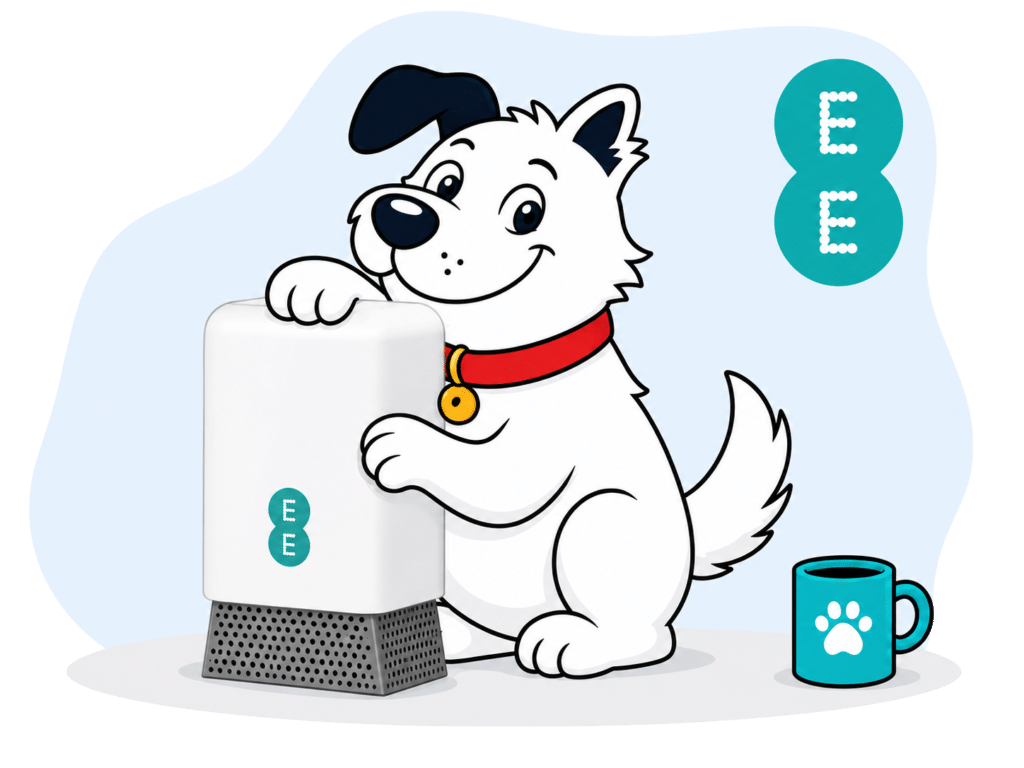
fibredog mascot dog posing with EE broadband routers
fibredog mascot wearing a headset

Having trouble choosing a broadband provider?

No single best provider or package exists – only the best pick for you personally. Fibredog’s YourMatch™ system uses thousands of provider metrics and a lot of maths to find you your perfect match.

EE Broadband routers and equipment scorecard

Six key areas. One overall score. All calculated using our transparent methodology.

Wi-Fi quality

How good the standard routers’ Wi-Fi is in everyday use, looking at specifications, Wi-Fi bands/type, and how many devices they can support.

9.2/10

Wi-Fi range

How far the router’s Wi-Fi should reach around the home, with consideration given to local factors like large homes or thick walls.

8.5/10

Whole-home Wi-Fi

Whether the provider offers a mesh router system or extra help for larger homes, whether it’s good, and whether it’ll cost you extra.

8.0/10

Wired connectivity

How well the router supports Ethernet and wired devices, looking at number of ports, their speeds, and how accessible they are.

9.1/10

Router controls

How much control you get through the app, admin page and any controls you might have on the router itself.

8.5/10

Using your own router

How easily you can use your own third-party router or mesh hardware – whether you can use anything you like or if it’s limited in any way.

9.4/10

Wi-Fi quality

In this section we're looking at EE's current Full Fibre routers: the Smart Hub 7 Plus on most packages, and the Smart Hub 7 Pro with Full Fibre 1.6Gbps or as an upgrade. Both are Wi-Fi 7 routers, but the Pro is the one built for EE's fastest speeds and for more demanding homes.

Key differences

The Pro adds 6GHz Wi-Fi

Both routers use 2.4GHz and 5GHz Wi-Fi, but the Smart Hub 7 Pro adds 6GHz too. That gives newer Wi-Fi 6E and Wi-Fi 7 devices a faster, cleaner frequency band to use (much less interference from other networks), although older phones, laptops and TVs won't benefit from that part because only the latest models can receive it.

The Pro is going to be too much for slow to mid-speed packages

The Smart Hub 7 Plus is already a fantastic router, with Wi-Fi 7, six antennas and support for up to 100 connected devices. The Smart Hub 7 Pro steps that up to eight antennas, up to 190 devices, and the 6GHz channel really can throw close to that much speed over Wi-Fi. We know. We tested it. So it only makes any sense at all on EE's 900Mbps-plus packages, and is properly suited to Full Fibre 1.6Gbps.

The wired ports are different

The Smart Hub 7 Plus gives you three Gigabit Ethernet ports and two 2.5Gbps ports. The Smart Hub 7 Pro gives you five 2.5Gbps ports instead. Do bear in mind, though, that one of those ports on each router is going to be the ONT – the part that plugs into the wall. That won't matter to everyone, but it's better if you've got faster wired kit, a desktop PC or a NAS.

The extender setup changes too

The Smart Hub 7 Plus pairs with EE's WiFi Extender 7 Plus, while the Smart Hub 7 Pro pairs with the Smart Hub Extender Pro. The Pro setup is the one tied to EE's 100Mbps-in-every-room Wi-Fi guarantee, which matters more if your home is awkward to cover.

INTERACTIVE TOOL

Compare routers from any provider

This provider’s routers are pre-selected for comparison with one another. However, you can use this tool to compare any router from any major provider using the dropdown menus below.

Feature Choose router Choose router
Fibredog rating
Router included as standard
Router manufacturer
Router model
Wi-Fi standard
Wi-Fi bands
2.4GHz supported
5GHz supported
6GHz supported
Beamforming
Antenna count
Maximum connected devices
Stated coverage
Total Ethernet ports
MU-MIMO
OFDMA
WPA3 security
Guest network
Antenna type
Gigabit Ethernet ports
2.5Gb Ethernet ports
5Gb Ethernet ports
10Gb Ethernet ports
WAN port speed
USB ports
Telephone ports
ONT Ethernet input
Coaxial input
Power connection
Mesh support
Provider mesh product
Third-party router use
Modem mode
Compatible broadband technology
App management
Parental controls
QoS
Automated QoS
Device prioritisation
Anti-bufferbloat controls
Manual queue management (SQM/CAKE)
Smart channel selection
Security features
Gamer mode
Game traffic prioritisation
Gaming QoS profiles
Server ping routing tools
Latency dashboards
Per-device gaming presets
Gaming VPN routing features
Work from home mode
Automatic firmware updates
Firmware update notes
Router height
Router width
Router depth
Router weight
Power consumption
Router orientation
Wall mountable
Router colour
Self-installation
Browser admin interface
WPS
Status light control
Reset button
Wi-Fi on/off button
Where would you like to go next? See all tools See all tools

How to choose between EE's routers

Smart Hub 7 Plus

This is already a very good router.

It has Wi-Fi 7, plenty of wired ports and enough capacity for most homes, so you shouldn't assume you need to pay more.

Smart Hub 7 Pro

You only really need it for 1.6Gbps.

The Pro adds 6GHz Wi-Fi, tri-band support and beefier whole-home kit, but below gigabit speeds it's mostly overkill.

The simple rule

Upgrade only if the speed justifies it.

If you're taking Full Fibre 1.6Gbps, the Pro comes included anyway. Otherwise, the Plus is usually the sensible choice.

Wi-Fi quality on the Smart Hub 7 Plus

The Smart Hub 7 Plus is a lot better than a 'standard' router has any right to be. It supports the latest Wi-Fi 7 protocol, has dual-band Wi-Fi, includes 2.5Gb Ethernet ports, and can handle up to 100 connected devices at once. For most homes, that’s already more than enough.

It means the paid upgrade to the Smart Hub 7 Pro isn’t something you should regard as necessary in the vast majority of cases. If you’re on a mid-range Full Fibre package such as Full Fibre 500, or even Full Fibre 900, and where most of your devices are phones, tablets, TVs and laptops, the Smart Hub 7 Plus will do the job perfectly well.

The key difference is that the Plus doesn’t have a 6GHz Wi-Fi channel. That means newer Wi-Fi 6E and Wi-Fi 7 devices won’t get access to the cleanest, fastest Wi-Fi band. But unless you’ve got a tonne of newer devices that support 6GHz, you won't notice any difference, since they will all default to the 5GHz band.

It's a very capable router, not a cheap bung. So for most people, the sensible starting point is to stick with the Smart Hub 7 Plus and only think about upgrading if your speed, devices or home layout genuinely justify it.

Wi-Fi quality on the Smart Hub 7 Plus

The Smart Hub 7 Pro is a monster. It adds tri-band Wi-Fi, 6GHz support, more antennas, more device capacity and five 2.5Gbps Ethernet ports. In plain English, it’s built for the future – for newer devices, and for homes where the broadband is doing one heck of a lot at once.

Only a tiny proportion of homes will actually need it – we're talking a fraction of one per cent. If you’re on a 150Mbps, 300Mbps or 500Mbps package, the Pro is beyond overkill. You might want it just because it’s excellent kit, but unless your home is teched up the wazoo with all the latest stuff, you won't notice any difference.

Heck, we have a workstation PC here at the fibredog office that's a year old and has some of the most powerful hardware money can buy inside of it. Building websites is taxing! But even that can't make use of 6GHz Wi-Fi 7. So do think about that before deciding that better is always better.

Where it starts to make sense is at 900Mbps and above, and where you’ve got both Wi-Fi 6E or Wi-Fi 7 devices that can use the 6GHz band, and perhaps more importantly, realistically need or can use Wi-Fi running at 1.2 to 1.5Gbps. This is why we praise this router very highly, but are also cautious to point out it's literally too good for most homes.

EE scores exceptionally well for Wi-Fi quality. The Smart Hub 7 Plus is already a very capable Wi-Fi 7 router for most homes – almost to the point where calling it the basic option is just silly – while the Smart Hub 7 Pro adds tri-band Wi-Fi, 6GHz support, more antennas and higher device capacity, and is almost too good, since most homes simply won’t have the devices or the need to utilise that extra power.

9.2 /10
Overall score

Wi-Fi quality score

This score is based on the router’s Wi-Fi standard, frequency bands, device capacity and key wireless features such as beamforming, MU-MIMO and OFDMA.

Router range

EE’s routers have excellent range, even before you think of adding in an EE WiFi Extender or two. Both current models start from a good place. The Smart Hub 7 Plus is already a very capable Wi-Fi 7 router, and the Smart Hub 7 Pro is verging on silly-powerful, with 6GHz support and a matching Pro Extender system. Range still depends heavily on your home, though, so a better router isn’t automatically a magic fix to dead spots.

The Pro has better range, but...

The Smart Hub 7 Plus has six antennas, while the Smart Hub 7 Pro has eight. And with the 6GHz channel also on the Pro, that means it has better range full stop, and better speeds to weak spots using the extender since the Pro and its extender use that 6Ghz channel to communicate with one another. That doesn’t mean the Pro will blast Wi-Fi through every wall in the house, but it does give it more to work with.

Your walls still matter more than the router

A powerful router helps, but it can’t change the laws of physics. Thick walls, old brick, stone, insulation, mirrors and distance all make things harder for Wi-Fi. So if you live in a long, awkward or very solid house, even EE’s excellent routers may still need an extender or two to get reliable coverage everywhere.

The 6GHz band is fast, but not magical

The Smart Hub 7 Pro’s 6GHz Wi-Fi is excellent for newer devices, but it’s not the longest-range part of the setup. It’s best for fast connections at shorter distances. Further away from the router, or through several walls, your devices may still fall back to 5GHz or 2.4GHz. But as we mentioned, it will use the 6GHz channel to communicate with its extenders – which is a bit of a game-changer, because this 'between-routers' communication – known among us nerds as backhaul – normally takes up a huge chunk of the speed that's deliverable to devices at the extender end.

EE’s extender options are properly great

EE's secret weapon isn’t just the router itself then. It’s also the WiFi Extender setup. The Smart Hub 7 Plus pairs with EE’s WiFi Extender 7 Plus, while the Smart Hub 7 Pro pairs with the WiFi Extender 7 Pro. If your range problem is whole-home coverage rather than raw speed, that extender system is what will matter most.

INTERACTIVE TOOL

Router range estimator

See how wall materials and router choice affect the quality of Wi-Fi around a typical home.
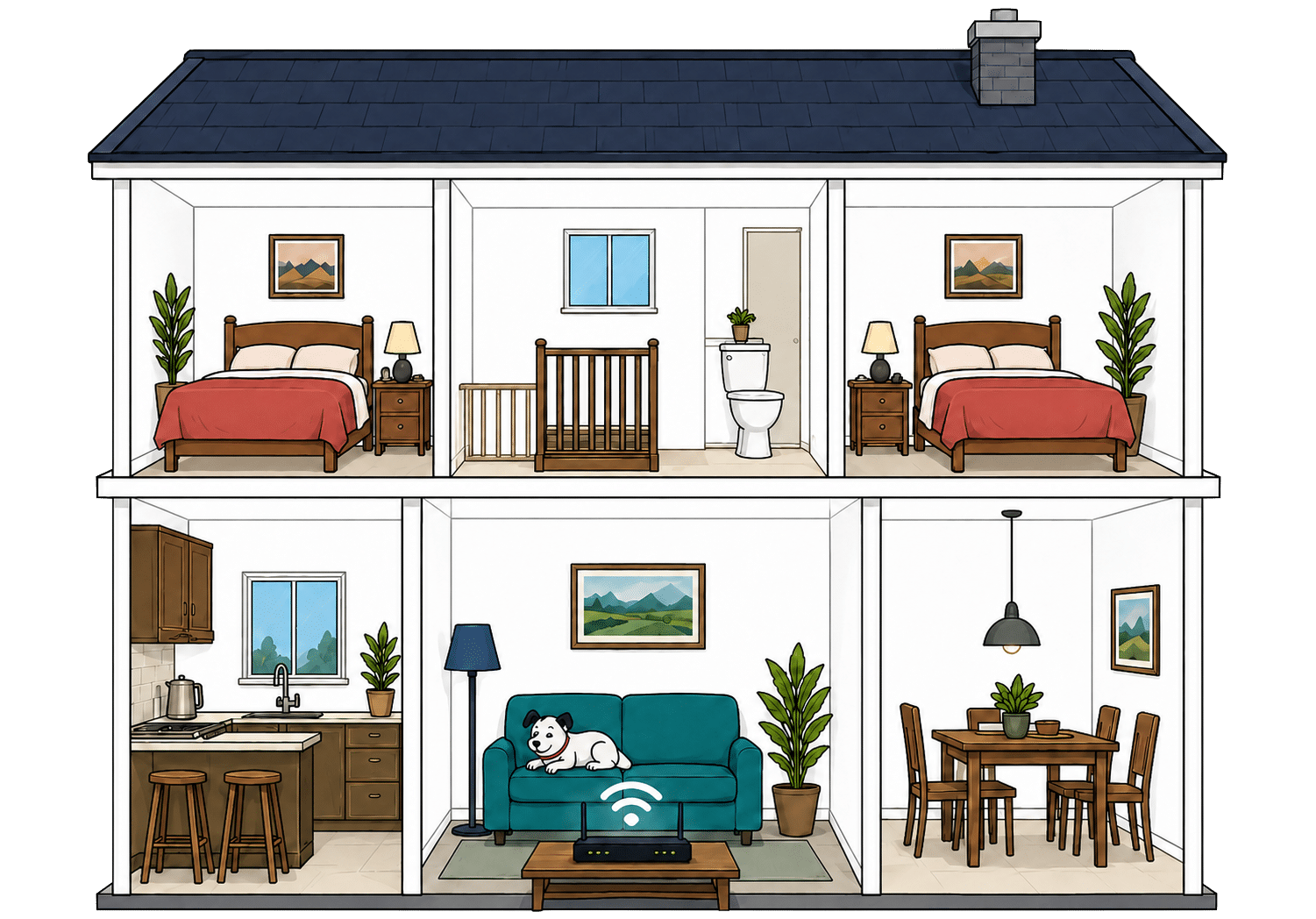
What are your internal walls mostly made from?
Which of these routers are you estimating?
Perfect reception – strong, reliable Wi-Fi. Average reception – slower speeds may happen. Poor reception – weak signal or drop-outs.

Where would you like to go next?

How to use the Router Range Estimator

It’s pretty straightforward. Select the router from this provider, and the main construction materials of your internal walls. It’s important to remember, though, that this is just an estimator.

It can give you a rough idea, but local factors like neighbouring network interference or mixed material wall set-ups can mean the results vary considerably from the estimate. It’s meant to give you a rule of thumb and only that.

How to maximise your EE router's range

  1. Start with placement

    Put your EE router near the middle of your home if you can, out in the open and away from thick walls or cupboards.

  2. Test every room

    Run a speed test where you actually use Wi-Fi. Our Whole Home Wi-Fi Calculator further down this page is built for exactly that.

  3. Use the EE app

    Check your router and connected devices in the EE app. It can help spot weak spots before you start moving stuff around blindly.

  4. Move obvious blockers

    Keep the router away from TVs, mirrors, metal objects, appliances and anything that boxes it in. Small changes can help.

  5. Add an extender if needed

    If some rooms still struggle, look at EE's WiFi Extender options. The right extender can matter more than swapping router position again.

Faster Wi-Fi has shorter legs

Wi-Fi behaves exactly like sound. Ever notice how you hear the bass (the low frequencies) a few rooms away, but can't hear the treble (the high frequencies)? It's the same here. The higher the frequency, the more detail there is in the signal, but the lower frequencies make it through far more walls.

That's the exact difference between Wi-Fi bands. 2.4GHz is the slow old workhorse: not glamorous, not especially quick, but better at reaching the awkward room at the back. 5GHz is faster and better for streaming, gaming and newer devices, but it gives up sooner as you move away from the router.

EE's current routers are Wi-Fi 7: that's great news, but it doesn't mean every band behaves the same. The Smart Hub 7 Plus uses 2.4GHz and 5GHz, while the Smart Hub 7 Pro adds 6GHz. That 6GHz band can be blisteringly quick nearby, but it's the shortest-legged of the lot once walls and distance get involved.

In our testing, both of these routers offered more measurable range than the majority of provider-supplied routers – especially the Pro 7, where the app would still be telling us we’d put the WiFi Extender too close to it when it was two rooms away. That’s really impressive, and if you’re thinking of signing up for EE Broadband you should absolutely assume the Smart Hub 7 Plus is going to be enough for you before weighing any heftier options.

8.5 /10
Overall score

Router range score

This score estimates how well the provider’s standard routers are likely to deliver usable Wi-Fi speeds around a typical home, not just whether a faint signal reaches the back bedroom.

Whole-home Wi-Fi

This section looks at EE’s whole-home Wi-Fi offering, somewhat confusingly named 'EE WiFi Extender'. Confusing because it's also the name of the devices themselves – the WiFi Extender 7 Plus and the WiFi Extender 7 Pro. We're going to look at which packages include extra kit, and when paying more for better coverage actually makes sense.

What is EE WiFi Extender?

EE WiFi Extender is the rather awkward name EE gives to its extra whole-home Wi-Fi gizmos. In normal, non-nerdspeak, human words, it means using an extender to push your Wi-Fi further around the house, so the router isn’t standing in the hallway shouting desperately at a bedroom that can't hear it.

It’s the same basic idea as any mesh-style setup. Your main EE router does the main job of distributing the internet connection coming in through your wall, then the extender gives the signal another place to jump to. If your router can reach the kitchen but not the garden office, the extender is the helpful middleman.

EE doesn’t include WiFi Extenders with every package

EE’s standard Smart Hub 7 Plus is already a very capable Wi-Fi 7 router, so you’re not starting with rubbish. But that doesn’t mean every EE package comes with a WiFi Extender included.

Far from it. Weak Wi-Fi doesn’t care how fast your broadband package is. If the signal can’t get through a thick wall, upgrading the speed coming into the house won’t magically fix it. You could buy enough bandwidth to run NASA and still have the spare room limping along like it’s on dial-up.

The WiFi Extender 7 Plus is the one most people will get

The WiFi Extender 7 Plus is the normal match for the Smart Hub 7 Plus. That’s the one most homes that need extra coverage will be looking at, and for most people it’ll be the sensible option if one router doesn’t quite cover the whole house.

The WiFi Extender 7 Pro is the bigger, fancier partner to the Smart Hub 7 Pro. That’s the setup tied to EE’s 100Mbps-in-every-room promise, and it’s the one that makes most sense with the 1.6Gbps package, where the Pro router comes included anyway. Below that, it may be super-powerful, but super-powerful can be overkill – as anyone who's ever tried to hammer a nail with an industrial jackhammer will attest.

You can check Wi-Fi blackspots in your home very easily using our unique Whole Home Wi-Fi Calculator. It'll not only find your dead zones, it'll tell you if you'll likely need an EE Extender or two ready for when you sign up, using both your existing Wi-Fi network, and a lot of maths. It'll even tell you where to put them!

INTERACTIVE TOOL

Whole Home Wi-Fi Calculator

Just follow these simple steps and we will calculate how many, if any, ‘Whole Home Wi-Fi’ pods you will need from your provider.

Start here. Work through the steps in order.

Upload Mbps
Latency ms

Step 1: Agree to M-Lab’s data policy

M-Lab stores test data, including your IP address. Tick to agree before testing.

Step 2: Connect to your home Wi-Fi

Make sure the phone, tablet or laptop you are using is connected to your home Wi-Fi network.

Step 3: Turn mobile data off

If your device has mobile data, turn it off before you start walking around the house.

Step 4: Test next to your router

Stand next to your main Wi-Fi router and press the button below. This gives us your baseline speed.

Recorded result Router baseline
Mbps

Step 5: Test your ground floor corners

Walk to each corner of your ground floor and run a test. If your home is not a perfect rectangle, do not overthink it. Just pick four sensible far-apart spots and keep the same numbering if you add another floor.

Corner 1 Mbps
Corner 2 Mbps
Corner 3 Mbps
Corner 4 Mbps

Last step: Add another floor or calculate

If you have another floor to test, add it below. If you have tested every floor you care about, press calculate.

Your Whole Home Wi-Fi result

Result waiting Run your tests, then press calculate.

    Where would you like to go next?


    EE WiFi Extender: The basics

    Find the weak room

    Extenders are for the places where your router’s signal runs out of puff.

    Use our calculator (above)

    Check likely Wi-Fi blackspots before you choose a package or add-on.

    Included on some tiers

    EE includes a WiFi Extender on selected higher package tiers, but not every package.

    Extra on basic tiers

    If it’s not included, you’ll need to add the right extender option at checkout.

    Plus or Pro WiFi Extender

    The Plus matches the Smart Hub 7 Plus. The Pro matches EE’s top 1.6Gbps setup.

    EE’s awkwardly named WiFi Extender – awkward because it’s the name of both the add-on and the devices themselves – is one of the best in the business. These smaller mesh routers are seriously powerful for what they are. It’s just a bit of a shame they’re not free. You have to select a top speed, a higher package tier, or the add-on WiFi Extender option to get it, and that’s more money no matter which of those routes you take.

    8.0 /10
    Overall score

    Whole-home Wi-Fi score

    This score estimates how well the provider helps customers fix Wi-Fi weak spots around the home, including mesh support, mesh devices, app control, Wi-Fi guarantees and router capability.

    fibredog mascot wearing a headset

    Having trouble choosing a broadband provider?

    No single best provider or package exists – only the best pick for you personally. Fibredog's YourMatch™ system uses thousands of provider metrics and a lot of maths to find you your perfect match.

    Wired connectivity

    Most people won’t spend much time thinking about the sockets on the back of their router, and fair enough. Wi-Fi is what most of us use day to day. But if you’re buying very fast Full Fibre, wired connections do start to matter more, because all but the latest 6GHz Wi-Fi channel can't quite push enough speed over the airwaves to deliver every last megabit you're paying for.

    Both EE routers are good for wired devices

    The Smart Hub 7 Plus has three Gigabit Ethernet ports and two 2.5Gbps Ethernet ports. That’s a good balance. You can plug in everyday stuff like a TV, games console, desktop PC or network switch, and still have faster ports available for the devices that need them most.

    For a lot of homes, that’s going to be more than enough. Even if you’re on a very fast EE package, not every device needs a super-fast wired connection. Your smart TV doesn’t need a 2.5Gbps port to stream Netflix unless you’re somehow streaming live 50 megapixel footage from the James Webb space telescope.

    The Smart Hub 7 Pro is wired for speed

    The Smart Hub 7 Pro is different because all five of its Ethernet ports are 2.5Gbps. You can only use four of those, though. ‘Only’. That’s excellent if you’ve got a fast desktop PC, a NAS, a serious home office setup, or a wired network switch that can actually make use of those speeds.

    It also makes more sense with EE’s 1.6Gbps package. If your broadband can go beyond 1Gbps, standard Gigabit ports become a bottleneck. The Pro router avoids that problem across all its wired ports, so you’re not having to think about which socket to use.

    network connections dog master 1

    How a simple wired EE broadband network works

    Plugging devices directly into your router gives them a steadier connection than Wi-Fi. These router diagrams show the physical Ethernet ports, including any ONT or internet port used by the broadband connection itself.

    Smart Hub 7 Plus
    1 ONT / internet port 2.5Gbps
    1 usable port 2.5Gbps 2.5Gbps
    3 usable ports 1Gbps 1Gbps each
    Smart Hub 7 Pro
    1 ONT / internet port 2.5Gbps
    4 usable ports 2.5Gbps 2.5Gbps each

    Check which port is the internet input before counting how many wired device ports you have spare.

    Use the fastest spare LAN port for the device or switch that needs the most speed.

    A cable still beats Wi-Fi when it matters

    Even with Wi-Fi 7, a wired connection is still the boring-but-brilliant option for anything that needs absolute reliability – an unbreakable connection. Gaming, big downloads, video calls, work computers and network storage can all benefit from being plugged in directly.

    That doesn’t mean you need Ethernet cables running around the house like a heist-movie laser maze. It just means the most important device in the room with the router should probably be wired if you care about getting the best possible performance.

    Both EE routers have a telephone port, which is there for EE’s Digital Home Phone service. That’s useful if you still want a home phone, but it doesn’t mean a landline is automatically included with every broadband package.

    If you need a home phone, treat it as something to check separately when you’re choosing the package. The port is there, but the service still needs to be part of what you’re buying.

    How to make best use of your EE router's LAN ports

    1. Count the usable ports

      One 2.5Gb port is used for the ONT connection, so it doesn't count as a spare port for your own devices.

    2. On the Plus, choose carefully

      The Smart Hub 7 Plus gives you one usable 2.5Gb port and three Gigabit ports once the ONT is connected.

    3. On the Pro, you get more

      The Smart Hub 7 Pro has four usable 2.5Gbps LAN ports after the ONT connection, so every spare port is fast.

    4. Wire the fussy devices

      Gaming PCs, consoles, work computers and network storage benefit most. TVs and printers usually won't need the fastest port.

    5. Add a switch if needed

      If you want wired connections in several rooms, you’ll need extra cabling or a proper Ethernet switch.
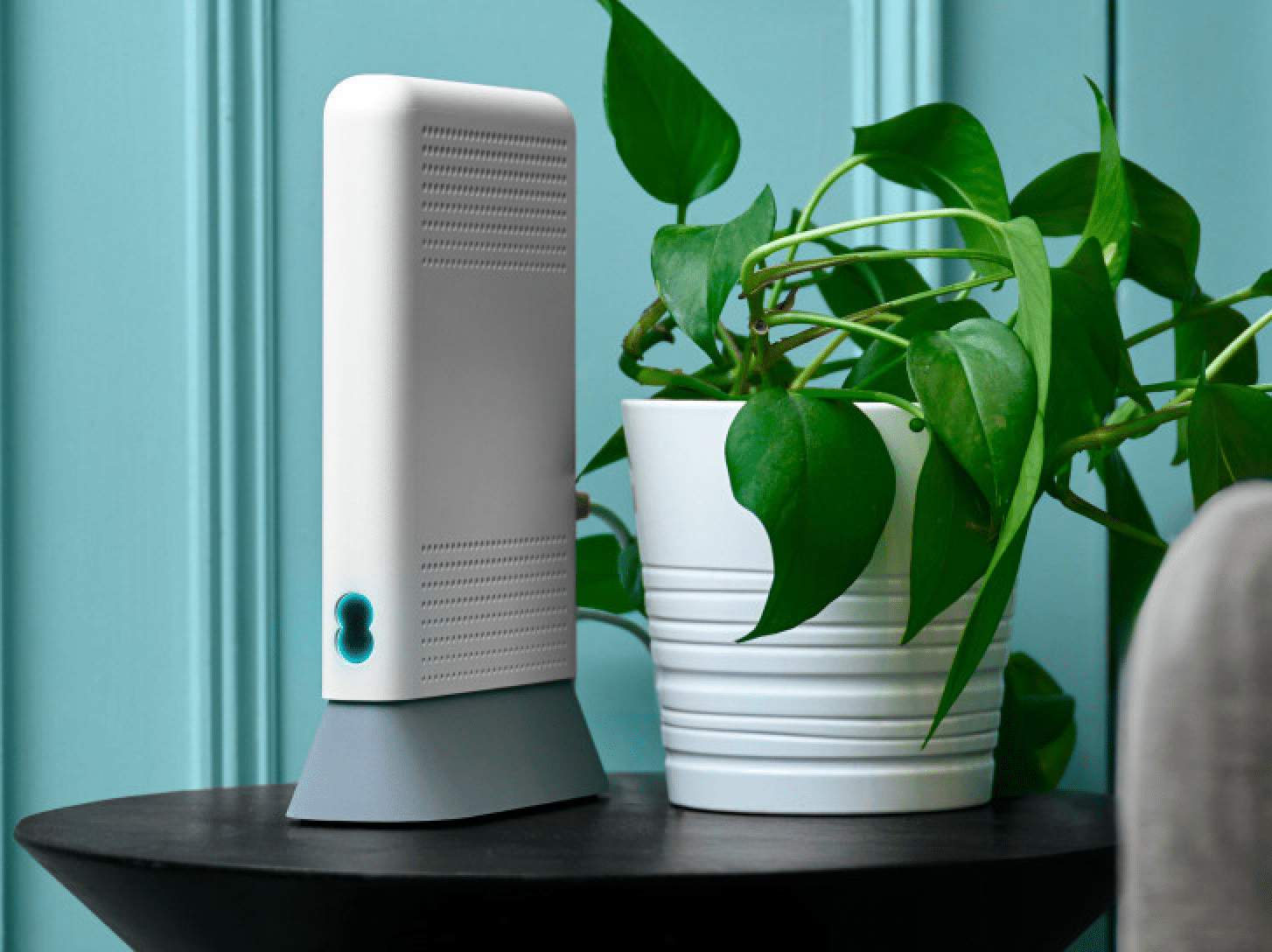
    EE scores really well for wired connectivity. The Smart Hub 7 Plus gives you a useful mix of Gigabit and 2.5Gbps ports, while the Smart Hub 7 Pro goes further with four usable 2.5Gbps LAN ports once the ONT/internet port is accounted for. The port layouts are exactly those required for the speeds the routers are designed to deliver, which is actually a better scheme than a provider router that has a 10Gbps port, but a top speed of 2Gbps available, for example.

    9.1 /10
    Overall score

    Wired connectivity score

    This score looks at how useful the router is if you want to plug devices in with cables, including the number of Ethernet ports, port speeds, phone ports and whether the router has the right connection for the network it uses.

    Router controls

    Getting a good router is only half the story. You also need to be able to change the things that matter without feeling like you’re trying to land a Boeing 747. EE does well here overall, with decent app controls, more in-depth browser controls, and most everyday settings covered. Though there are still a couple of things you can’t do.

    EE gives you decent app control

    The EE App covers the everyday jobs most of us will actually care about. You can manage your broadband package, check connected devices, set up or adjust parental controls, set up a guest network, and deal with the usual home Wi-Fi admin easily without needing to disappear into a complex browser settings page.

    That’s exactly how it should be. Router controls shouldn’t only be available to the sort of person who knows what DHCP stands for and has opinions about Ethernet switches.

    You won’t get absolutely everything from the app, though. If you want to get into deeper router settings, you’ll still need the browser admin page. That’s not unusual, and honestly it’s probably for the best.

    Browser controls are still there

    EE still gives you a proper browser admin page, which is good. The app is handy for normal use, but a browser page is still the better place for more detailed router settings, especially if you’re changing Wi-Fi details, checking connected devices or dealing with anything more fiddly.

    The nice thing is that EE doesn’t force you to choose between simple controls and more complex dashboards. You get both. The app is there for everyday jobs, and the browser page is there when you need to lift the bonnet.

    Good basics, but not every control exists

    So EE App management, browser admin, parental controls, guest Wi-Fi, smart channel selection, security features, automatic updates, WPS and a physical reset button are all available. That’s a good spread of controls for a provider router.

    The two obvious gaps are specific device prioritisation and a physical Wi-Fi on/off button. EE does offer automated QoS and WiFi Optimiser controls, so it’s not barebones, but you can’t simply press a button on the router to turn Wi-Fi off, and you don’t get full per-device priority control. For most homes that won’t matter, but for home workers that is something that's desirable.

    EE’s router controls are in a good place overall. You get the simple app-based stuff, the deeper browser controls, and most of the household features people actually use. It isn’t a tinkerer's paradise, but it’s not really supposed to be.

    Router controls

    EE Broadband router controls at a glance

    Here’s a quick look at the router controls you can expect, including app management, browser admin tools, Wi-Fi settings, security features and the physical buttons on the router itself.

    App management App-based controls Available
    Browser admin page Browser-based controls Available
    Parental controls Household controls Available
    Guest network Separate guest Wi-Fi Available
    QoS Traffic priority controls Available
    Device prioritisation Per-device priority Unavailable
    Smart channel selection Wi-Fi optimisation Available
    Security features Built-in security notes Available
    Automatic updates Firmware updates Available
    WPS Push-button pairing Available
    Reset button Physical reset control Available
    Wi-Fi on/off button Physical Wi-Fi control Unavailable

    Checked from manufacturer specifications. Fibredog tracks dozens of router specification parameters across dozens of provider routers. When a provider changes its router or features, this table is swiftly updated.

    What stands out

    • Useful app control

      The EE app covers the everyday router jobs, including app management, parental controls, guest Wi-Fi and checking what’s connected.

    • Browser controls are still there

      If you need the deeper settings, both EE routers also let you log in through a browser admin page.

    • Good basics, two missing bits

      EE covers guest Wi-Fi, security, WPS, smart channel selection and updates, but there’s no device prioritisation or physical Wi-Fi on/off button.

    You get useful app controls: parental controls, guest Wi-Fi, security features and automatic updates, though you’ll still have to delve into the slightly scary browser admin page if you want to mess with deeper – and potentially more destructive – control options. We don’t see that as a bad thing. It’s all too easy to break something and have to turn to the little pokey-hole reset button in the back of the router to fix your mess.

    8.5 /10
    Overall score

    Router controls score

    This score looks at how easy the router is to manage, including app support, browser settings, parental controls, guest Wi-Fi, security features, updates and physical buttons.

    Using your own router

    EE Broadband lets you use any router with a LAN/WAN port, and with Full Fibre it’s a cleaner setup than it is with some cable providers. You’re not trying to turn an EE WiFi Hub into a pretend modem. You’re replacing the EE router completely, connecting it to the box on the wall. That’s useful if you already have a mesh system, want more advanced controls, or simply prefer using a router you’ve chosen yourself.

    Using your own router with EE Broadband explained step-by-step

    Check your own router is suitable

    EE Full Fibre uses an ONT on the wall, so your own router needs a proper WAN Ethernet port and the right broadband connection settings. If it only works as a cable router or mesh satellite, it may not be enough on its own.

    Unplug the EE router from the ONT

    The ONT is the small fibre box fitted inside your home. Your EE Smart Hub normally plugs into it using Ethernet.

    To use your own router, you’re replacing that connection rather than putting the EE router into modem mode.

    Connect your own router by Ethernet

    Run an Ethernet cable from the ONT to the WAN or internet port on your own router.

    Once that’s done, your own router becomes the main router for the home, not an extra Wi-Fi box hanging off the EE hub.

    Enter the connection details

    Your own router may need EE’s broadband connection settings before it gets online. Don’t guess these if you’re not sure.

    Check EE’s current help pages or ask EE before changing anything, because the right settings can depend on the service and router you’re using.

    Test the connection properly

    Once your own router is online, test wired speed, Wi-Fi coverage and stability around the home.

    If anything goes wrong, plug the EE router back into the ONT before contacting support, because that keeps troubleshooting much simpler.

    EE is cleaner than a cable-style setup. With EE Full Fibre, your own router can connect to the ONT directly. You don’t need modem mode, but you do need a router that supports the right connection settings.

    EE lets you use your own router

    With EE Full Fibre, the broadband connection comes into your home through an ONT, which is the small box fitted to the wall. The EE router then plugs into that. If you want to use your own router, the basic idea is that your router plugs into the ONT instead.

    That means you’re not relying on a modem mode, because there isn’t really a modem-in-the-router problem to solve. You’re just swapping the EE router for your own router, provided your own router supports the right connection settings.

    You probably won’t need to do this

    The big difference with EE is that its own routers are so good. The Smart Hub 7 Plus is a Wi-Fi 7 router, and the Smart Hub 7 Pro is even more capable, with 6GHz support and a stronger setup for the fastest packages.

    So using your own router is more of a power-user option than a fix for bad supplied kit. If you’ve already invested in a fancy mesh system, fair enough. But if you’re just trying to get good Wi-Fi, EE’s own router and extender options are usually going to best anything you bought from Amazon.

    The main reason to do this is control

    Where your own router can still make sense is control. You might want more advanced settings, better per-device management, more detailed networking tools, more built-in VPN features, or a mesh system that gives you more flexibility than EE’s own gear.

    That’s the trade-off. EE’s routers are easier, supported and more than enough for most homes. Your own router can be more powerful and more flexible if you're willing to spend an awful lot of money, but you’re taking on more of the inevitable troubleshooting yourself.

    Why you might still want your own router

    You already own serious kit

    If you’ve spent proper money on a mesh system, you may prefer to keep using the setup you already trust.

    You want a different mesh system

    EE’s own routers and extenders are very good, but you may still prefer Eero, Deco, Orbi or another system.

    You need specialist controls

    Some third-party routers give you deeper tools for VPNs, DNS, VLANs, firewall rules and local network tinkering.

    You prefer different parental controls

    EE includes parental controls, but another router may give you profiles, schedules and limits you already know.

    You want your existing setup unchanged

    If every device in the house already knows your current network, keeping it can save a lot of faffing about.

    You want features EE doesn’t offer

    Device prioritisation, advanced traffic rules or very specific home-lab features may still need your own router.

    EE Smart Hub 7 Plus router

    What changes when you use your own router?

    With EE Full Fibre, your own router can connect directly to the ONT on the wall. You’re replacing the EE router entirely.

    The ONT

    Brings the fibre into your home

    The ONT is the small wall box where the fibre connection arrives. It stays in place and handles the broadband hand-off.

    Your own router plugs into the ONT by Ethernet, just as an EE Smart Hub normally would.

    Your own router

    Takes over the home network

    Your router then handles Wi-Fi, wired devices, guest access, parental controls and any advanced settings it offers.

    That can be useful, but EE’s own routers are already very good, so this is mainly for people who know they want a specific setup.

    EE makes using your own router pretty easy. Since your connection comes into your home via an ONT and a LAN cable, you can just hook it up, dial in EE’s settings (they’re actually BT’s settings in reality), and hey presto. It’s not quite plug it in and go, but EE provides clear instructions on how to set up your own router. It’s not hard.

    9.4 /10
    Overall score

    Using your own router score

    This score reflects how well the provider supports third-party router use, including ONT or modem-mode setup, WAN port speed, connection type and how cleanly your own router can take over the home network.

    fibredog mascot wearing a headset

    Having trouble choosing a broadband provider?

    No single best provider or package exists – only the best pick for you personally. Fibredog's YourMatch™ system uses thousands of provider metrics and a lot of maths to find you your perfect match.

    Some links on this page may earn us a small commission if you click through and buy. This never affects either what you pay, or our scores and recommendations. If, however, you’d rather bypass affiliate links, use this direct EE Broadband link instead.