
VODAFONE BROADBAND ROUTERS AND EQUIPMENT REVIEW

Vodafone Broadband routers review: How good are they?

Vodafone offers two routers across its package range: the Power Hub and the Ultra Hub 7. Which one you get will depend on both the package you choose and how much you’re prepared to pay. What are their capabilities? How different are they? Let’s find out.


By Data checked  Checked weekly
The fibredog mascot dog with the vodafone power hub and ultra hub 7
fibredog mascot wearing a headset

Having trouble choosing a broadband provider?

No single best provider or package exists – only the best pick for you personally. Fibredog’s YourMatch™ system uses thousands of provider metrics and a lot of maths to find you your perfect match.

Vodafone Broadband routers and equipment scorecard

Six key areas. One overall score. All calculated using our transparent methodology.

Wi-Fi quality

How good the standard routers’ Wi-Fi is in everyday use, looking at specifications, Wi-Fi bands/type, and how many devices they can support.

8.3/10

Wi-Fi range

How far the router’s Wi-Fi should reach around the home, with consideration given to local factors like large homes or thick walls.

7.7/10

Whole-home Wi-Fi

Whether the provider offers a mesh router system or extra help for larger homes, whether it’s good, and whether it’ll cost you extra.

7.3/10

Wired connectivity

How well the router supports Ethernet and wired devices, looking at number of ports, their speeds, and how accessible they are.

9.2/10

Router controls

How much control you get through the app, admin page and any controls you might have on the router itself.

9.7/10

Using your own router

How easily you can use your own third-party router or mesh hardware – whether you can use anything you like or if it’s limited in any way.

9.4/10

Wi-Fi quality

Vodafone’s two-router range looks straightforward, but the interesting part is what happens at the top. The standard Power Hub is genuinely capable, while the newer Ultra Hub 7 brings Wi-Fi 7 yet drops a major wireless feature found on the premium router it replaced.

Key differences

The Power Hub gets the basics right

Vodafone includes its dual-band Power Hub with ordinary Full Fibre packages. It supports Wi-Fi 6, WPA3 security, intelligent wireless optimisation and more than 100 connected devices. This is a perfectly respectable place to start, particularly when some providers still use much older technology for their standard router.

Pro 3 unlocks the Ultra Hub 7

Choose Pro 3 and Vodafone replaces the Power Hub with its Ultra Hub 7. You’ll also receive a Super WiFi 7 Booster, automatic 4G backup and a 10Mbps whole-home Wi-Fi guarantee. The router is automatically supplied with Vodafone’s multi-gigabit packages, where its faster wired and wireless hardware is genuinely useful.

The newer router loses the 6GHz band

Here’s the oddity. Vodafone’s previous Ultra Hub was a tri-band Wi-Fi 6E router using 2.4GHz, 5GHz and 6GHz. The Ultra Hub 7 moves to the newer Wi-Fi 7 standard but drops 6GHz entirely. It’s genuine Wi-Fi 7, but in one important respect the replacement is less capable than the router it replaced.

Better coverage sits behind a paywall

Neither router is supplied with Vodafone’s complete mesh service on an ordinary package. Super WiFi costs additional money each month, while Pro 3 includes one booster and up to two more when needed. Vodafone’s 10Mbps-per-room guarantee is worthwhile, but you’ll have to pay extra to get it.

INTERACTIVE TOOL

Compare routers from any provider

This provider’s routers are pre-selected for comparison with one another. However, you can use this tool to compare any router from any major provider using the dropdown menus below.

Feature Choose router Choose router
Fibredog rating
Router included as standard
Router manufacturer
Router model
Wi-Fi standard
Wi-Fi bands
2.4GHz supported
5GHz supported
6GHz supported
Beamforming
Antenna count
Maximum connected devices
Stated coverage
Total Ethernet ports
MU-MIMO
OFDMA
WPA3 security
Guest network
Antenna type
Gigabit Ethernet ports
2.5Gb Ethernet ports
5Gb Ethernet ports
10Gb Ethernet ports
WAN port speed
USB ports
Telephone ports
ONT Ethernet input
Coaxial input
Power connection
Mesh support
Provider mesh product
Third-party router use
Modem mode
Compatible broadband technology
App management
Parental controls
QoS
Automated QoS
Device prioritisation
Anti-bufferbloat controls
Manual queue management (SQM/CAKE)
Smart channel selection
Security features
Gamer mode
Game traffic prioritisation
Gaming QoS profiles
Server ping routing tools
Latency dashboards
Per-device gaming presets
Gaming VPN routing features
Work from home mode
Automatic firmware updates
Firmware update notes
Router height
Router width
Router depth
Router weight
Power consumption
Router orientation
Wall mountable
Router colour
Self-installation
Browser admin interface
WPS
Status light control
Reset button
Wi-Fi on/off button
Where would you like to go next? See all tools See all tools

Which Vodafone Broadband router do you get?

Vodafone Power Hub

Included with Vodafone's ordinary Full Fibre packages.

It is a capable dual-band Wi-Fi 6 router with WPA3, intelligent optimisation, mesh expansion and support for more than 100 devices.

Vodafone Ultra Hub 7

Supplied when you choose the premium Pro 3 service.

The Wi-Fi 7 upgrade is faster and supports premium features, although its dual-band design does not include 6GHz Wi-Fi.

Multi-gigabit packages

The Ultra Hub 7 is automatically used on Vodafone's fastest tiers.

On eligible lower-speed Full Fibre packages, the same router is available by opting into Pro 3 rather than choosing a particular speed.

Two capable routers with one very strange upgrade

The Power Hub is the router most people will receive, and there’s little to complain about. Its dual-band Wi-Fi 6 hardware supports 2.4GHz and 5GHz, alongside WPA3 security and automatic wireless optimisation. It can handle more than 100 connected devices, making it comfortably capable enough for an ordinary busy household.

The Ultra Hub 7 brings genuine Wi-Fi 7 features, including Multi-Link Operation and more efficient use of the available spectrum. These can improve speed, latency and reliability when you’re using compatible devices. It also provides the faster connectivity required by Vodafone’s multi-gigabit packages, so this isn’t simply a new badge stuck onto the Power Hub.

However, Vodafone has made the baffling decision to limit it to the same 2.4GHz and 5GHz bands. Its older Ultra Hub supported Wi-Fi 6E across three bands, including the faster and less congested 6GHz spectrum. The Ultra Hub 7 uses a newer Wi-Fi standard but removes that entire band. Calling it an upgrade without mentioning that loss would be rather generous.

This leaves Vodafone with a good standard router and a premium one that’s better, but not as comprehensively better as its name suggests. The Power Hub should be more than adequate for most homes. Pro 3 adds useful mesh coverage and a proper room-by-room guarantee, but the Ultra Hub 7 itself is a cut-down implementation of Wi-Fi 7 rather than the technological leap you might expect.
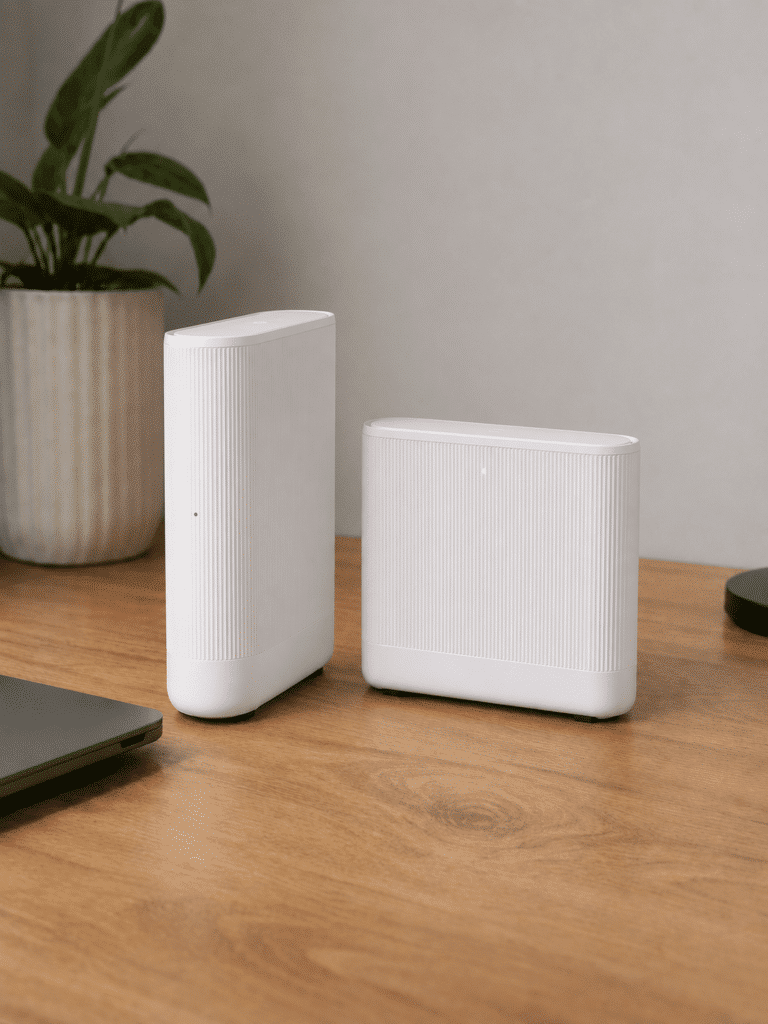
vodafone power hub and ultra hub 7 routers

Vodafone’s Power Hub is a capable Wi-Fi 6 router that won’t leave ordinary packages feeling short-changed. The Ultra Hub 7 adds genuine Wi-Fi 7 features, but dropping the older Ultra Hub’s 6GHz band is a baffling backwards step. Pro 3 improves coverage considerably, although its best equipment and guarantee cost extra.

8.3 /10
Overall score

Wi-Fi quality score

This score is based on the router’s Wi-Fi standard, frequency bands, device capacity and key wireless features such as beamforming, MU-MIMO and OFDMA.

Router range

Router range isn’t decided by the newest Wi-Fi number on the box. Walls, floors, distance and interference still do most of the damage. Vodafone’s two routers are both capable, but its paid Super WiFi system matters far more when you need reliable coverage across a larger or awkwardly shaped home.

Both routers still depend on sensible placement

Vodafone’s Power Hub and Ultra Hub 7 both use 2.4GHz and 5GHz Wi-Fi. The slower 2.4GHz band reaches further and copes better with walls, while 5GHz provides faster speeds over shorter distances. Neither router can simply blast its fastest connection through every room.

Where you put the router will therefore make an enormous difference. Hiding it behind the television, placing it on the floor or shutting it inside a cupboard will reduce its useful range. Start somewhere open and reasonably central before deciding the hardware isn’t up to the job.

The Power Hub should cover an ordinary home

The standard Power Hub uses Wi-Fi 6 with intelligent wireless optimisation, helping it choose better channels when neighbouring networks cause congestion. It should serve many average-sized homes perfectly well, although Vodafone doesn’t publish a dependable room count. Thick stone walls, several floors or a long extension can still leave difficult areas behind.

Wi-Fi 7 improves capacity, not the laws of physics

The Ultra Hub 7 can move data more efficiently and balance compatible devices across its two bands using Multi-Link Operation. That can improve speed, latency and reliability when several people are online, but it won’t automatically make the signal travel further through a difficult building.

Curiously, Vodafone’s older Ultra Hub included the short-range 6GHz band, while the newer Ultra Hub 7 drops it. That’s a disappointing loss for nearby speed and capacity, although 6GHz would never have been the answer to distant rooms anyway. For whole-home range, Vodafone’s boosters remain the important upgrade.

Super WiFi is the real coverage solution

Vodafone’s managed mesh service can extend coverage using up to three boosters. Pro 3 includes the first Super WiFi 7 Booster, with two more supplied at no additional cost when Vodafone decides they’re needed. On an ordinary package, Super WiFi costs extra each month.

The service guarantees signal and throughput of at least 10Mbps in every room. If Vodafone still can’t deliver that after installing three boosters and trying to resolve the problem, you can leave without an early termination fee. That’s not a great promise in all honesty, since 10Mbps will fail hard at 4K streaming and take a very, very long time to download a modern videogame.

INTERACTIVE TOOL

Router range estimator

See how wall materials and router choice affect the quality of Wi-Fi around a typical home.
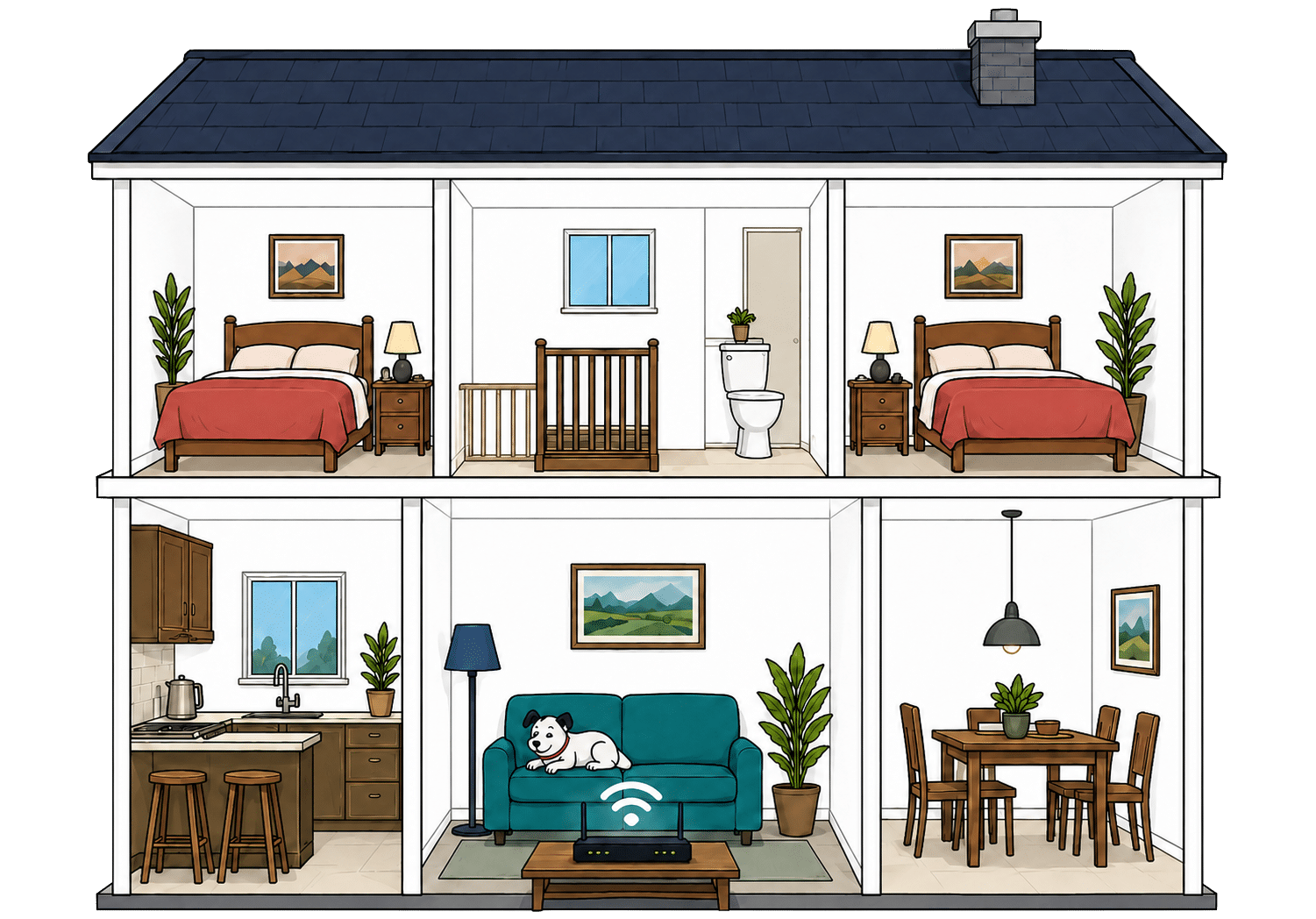
What are your internal walls mostly made from?
Which of these routers are you estimating?
Perfect reception – strong, reliable Wi-Fi. Average reception – slower speeds may happen. Poor reception – weak signal or drop-outs.

Where would you like to go next?

How to use the Router Range Estimator

It’s pretty straightforward. Select the router from this provider, and the main construction materials of your internal walls. It’s important to remember, though, that this is just an estimator.

It can give you a rough idea, but local factors like neighbouring network interference or mixed material wall set-ups can mean the results vary considerably from the estimate. It’s meant to give you a rule of thumb and only that.

How to maximise your Vodafone router's range

  1. Start with placement

    Put the Vodafone Power Hub or Ultra Hub 7 near the middle of your home if you can, out in the open and away from thick walls or cupboards.

  2. Test every room

    Run a speed test where you actually use Wi-Fi. Our Whole Home Wi-Fi Calculator further down this page is built for exactly that.

  3. Use the Broadband app

    Use Vodafone's Broadband app and diagnostics to check the connection, connected devices and Wi-Fi performance around the home.

  4. Move obvious blockers

    Keep the hub away from TVs, mirrors, metal objects, appliances and anything that boxes it in. Give the signal space to leave the router.

  5. Add Super WiFi if needed

    If rooms still struggle, add Vodafone's Super WiFi service or choose Pro 3 for its premium router, booster and whole-home support.

Faster Wi-Fi has shorter legs

Wi-Fi behaves exactly like sound. Ever notice how you hear the bass, meaning the low frequencies, a few rooms away, but can't hear the treble? It's the same here. The higher the frequency, the more detail there is in the signal, but lower frequencies make it through far more walls.

That's the difference between Wi-Fi bands. 2.4GHz is the slow old workhorse. It isn't glamorous or especially quick, but it's better at reaching the awkward room at the back. 5GHz is faster and better for streaming, gaming and newer devices, but it gives up sooner as you move away from the router.

Vodafone's range runs from the Wi-Fi 6 Power Hub to the Wi-Fi 7 Ultra Hub 7. Both use 2.4GHz and 5GHz but omit 6GHz, so even the premium model lacks that very fast short-range band. Super WiFi boosters provide the practical coverage extension.

Both Vodafone routers re good, but neither can defeat thick walls or awkward layouts alone. The Power Hub is a capable starting point, while Super WiFi provides the meaningful range upgrade. Its 10Mbps room guarantee is stingy at best, but being able to get up to three boosters is useful, even if you do have to pay extra for it.

7.7 /10
Overall score

Router range score

This score estimates how well the provider’s standard routers are likely to deliver usable Wi-Fi speeds around a typical home, not just whether a faint signal reaches the back bedroom.

Whole-home Wi-Fi

Vodafone’s whole-home system is called Super WiFi. It uses extra boosters to cover rooms the main router struggles to reach. It’s included with Pro 3 but costs extra on ordinary packages, so don’t assume choosing faster broadband will automatically solve poor Wi-Fi around your home.

Super WiFi fills the gaps around your home

Super WiFi is Vodafone’s answer to the corners of your home a single Wi-Fi router struggles to reach. Its boosters work together with your router, passing the connection around your home instead of expecting one box to reach through every wall and floor by itself.

Pro 3 includes one Super WiFi 7 Booster from the start. If that isn’t enough, Vodafone can supply two more when they’re needed and at no extra charge, giving you up to three in total. Those additional boosters don’t carry separate charges, although Vodafone decides whether your home requires them.

The room-by-room guarantee has some bite

Vodafone promises a connection of at least 10Mbps in every room covered by Super WiFi. That won’t deliver the full speed of a fast broadband package everywhere, but it should be enough to prevent rooms becoming practically unusable for everyday browsing, calls and some non-4K streaming.

If Vodafone still can’t meet that promise after supplying three boosters and trying to fix the problem, you can leave without an early termination fee. You’ll need to tell Vodafone within 30 days of receiving the third booster, so the escape route comes with a firm deadline.

Pro 3 bundles coverage with several useful extras

Super WiFi can be added to an ordinary Vodafone package for an extra monthly cost. Pro 3 includes it alongside the Ultra Hub 7, automatic 4G backup, permanent online security and enhanced technical support. It’s a genuine premium package rather than a booster with a fancy name.

The downside is that most of Vodafone’s best extras sit behind this upgrade. Ordinary packages include the perfectly capable Power Hub, but no booster arrives as standard and there’s no room-by-room Wi-Fi promise unless you pay more.

If your home already has good coverage, that extra expense may be difficult to justify. If you have thick walls, several floors or persistent dead spots, however, the combination of up to three boosters and a penalty-free escape route makes it totally worthwhile. Needed, even.

Vodafone’s whole-home Wi-Fi service is thoughtfully put together. You can receive up to three boosters, additional units aren’t charged for separately and the 10Mbps room guarantee has a proper penalty-free exit behind it. The catch is straightforward: ordinary broadband packages don’t include it, so Vodafone’s best coverage remains another feature you’ll have to pay extra to receive.

INTERACTIVE TOOL

Whole Home Wi-Fi Calculator

Just follow these simple steps and we will calculate how many, if any, ‘Whole Home Wi-Fi’ pods you will need from your provider.

Start here. Work through the steps in order.

Upload Mbps
Latency ms

Step 1: Agree to M-Lab’s data policy

M-Lab stores test data, including your IP address. Tick to agree before testing.

Step 2: Connect to your home Wi-Fi

Make sure the phone, tablet or laptop you are using is connected to your home Wi-Fi network.

Step 3: Turn mobile data off

If your device has mobile data, turn it off before you start walking around the house.

Step 4: Test next to your router

Stand next to your main Wi-Fi router and press the button below. This gives us your baseline speed.

Recorded result Router baseline
Mbps

Step 5: Test your ground floor corners

Walk to each corner of your ground floor and run a test. If your home is not a perfect rectangle, do not overthink it. Just pick four sensible far-apart spots and keep the same numbering if you add another floor.

Corner 1 Mbps
Corner 2 Mbps
Corner 3 Mbps
Corner 4 Mbps

Last step: Add another floor or calculate

If you have another floor to test, add it below. If you have tested every floor you care about, press calculate.

Your Whole Home Wi-Fi result

Result waiting Run your tests, then press calculate.

    Where would you like to go next?


    Vodafone Super WiFi: The basics

    Find the weak room

    Super WiFi is intended for rooms where the signal from the Power Hub or Ultra Hub 7 becomes unreliable.

    Use our calculator above

    Check likely Wi-Fi blackspots before you pay for a faster package or extra kit.

    Not standard on every package

    Ordinary Vodafone Broadband packages include the Power Hub but do not include the full Pro 3 booster setup.

    Usually costs extra

    Super WiFi is a paid service on ordinary packages, while the premium Pro 3 service includes its booster and wider support package.

    Coverage, not raw speed

    Vodafone's Super WiFi booster helps Wi-Fi reach distant rooms. It does not make the broadband entering your home any faster.

    Vodafone offers one of the better whole-home Wi-Fi set-ups. Super WiFi supports up to three boosters and promises at least 10Mbps in every room, with the right to leave if Vodafone can’t deliver. It’s included with the Pro 3 add-on, but you'll have to pay extra for it if you want it on its own without all the other bits and bobs Pro 3 offers.

    7.3 /10
    Overall score

    Whole-home Wi-Fi score

    This score estimates how well the provider helps you fix Wi-Fi weak spots around the home, including mesh support, mesh devices, app control, Wi-Fi guarantees and router capability.

    fibredog mascot wearing a headset

    Having trouble choosing a broadband provider?

    No single best provider or package exists – only the best pick for you personally. Fibredog's YourMatch™ system uses thousands of provider metrics and a lot of maths to find you your perfect match.

    Wired connectivity

    Wired connections aren’t glamorous, but they remain the best option when you want steady performance from a games console, desktop computer or network drive. Vodafone’s Power Hub covers ordinary Full Fibre speeds comfortably, while the Ultra Hub 7 adds the faster connections needed to make proper use of its multi-gigabit packages.

    The Power Hub covers everyday wired needs

    Vodafone’s standard Power Hub provides four Gigabit Ethernet sockets for connecting devices directly. Its separate internet input means your Full Fibre connection doesn’t take one of those away, leaving all four available for equipment around your home.

    Each socket can handle the full speed of Vodafone’s ordinary Full Fibre range. A television, games console, desktop computer and network drive could therefore remain connected together without adding any extra equipment. Most homes simply won’t need anything more elaborate.

    The Ultra Hub 7 is ready for faster packages

    Vodafone’s multi-gigabit packages can exceed the limit of an ordinary Gigabit Ethernet socket, so the Ultra Hub 7 includes faster 2.5Gbps connections alongside its standard Gigabit sockets. That lets compatible equipment use considerably more of the speed reaching your home.

    Most laptops, televisions and games consoles still use ordinary Gigabit Ethernet, so you’ll need suitably fast equipment to benefit. However, Vodafone has at least supplied a router capable of handling the packages it sells rather than creating an immediate bottleneck.

    network connections dog master 1

    How a simple wired Vodafone Broadband network works

    Plugging devices directly into your router gives them a steadier connection than Wi-Fi. These router diagrams show the physical Ethernet ports, including any ONT or internet port used by the broadband connection itself.

    Power Hub
    1 ONT / internet port 2.5Gbps
    3 usable ports 1Gbps 1Gbps each
    Ultra Hub 7
    1 ONT / internet port 2.5Gbps
    1 usable port 2.5Gbps 2.5Gbps
    2 usable ports 1Gbps 1Gbps each

    Check which port is the internet input before counting how many wired device ports you have spare.

    Use the fastest spare LAN port for the device or switch that needs the most speed.

    Use cables where reliability matters most

    Even with a good router, Wi-Fi speeds rise and fall as you move around your home. A cable gives important devices a direct and much steadier connection. Gaming, large downloads, video calls and moving files to network storage can all benefit.

    You don’t need to wire every room. Start with equipment near the router that rarely moves, such as your television, console or desktop computer. This also removes those devices from Wi-Fi, leaving more room for phones, tablets and everything else that genuinely needs to be wireless.

    If you run out of sockets, an inexpensive network switch can add more. It won’t make the connection faster, but it allows several nearby devices to share one router socket without constantly swapping cables.

    How to make best use of your Vodafone router's LAN ports

    1. Identify your Vodafone hub

      Check whether you have the standard Power Hub or the Ultra Hub 7, because their wired capabilities differ and one socket may be used by the ONT.

    2. Gigabit covers ordinary tiers

      A Gigabit Ethernet connection can carry Vodafone's ordinary Full Fibre speeds once normal networking overheads are allowed for.

    3. Match fast ports to fast devices

      If you have an Ultra Hub 7 and a multi-gigabit package, use its faster Ethernet connection for the one device that can actually exploit the extra speed.

    4. Wire the devices that care

      Gaming PCs, consoles, work computers and network storage benefit most. TVs and printers can wait their turn for a wired port.

    5. Add a switch if needed

      If your wired sockets aren't enough, add an Ethernet switch rated for the speed you need. It adds ports but cannot make the router connection faster.
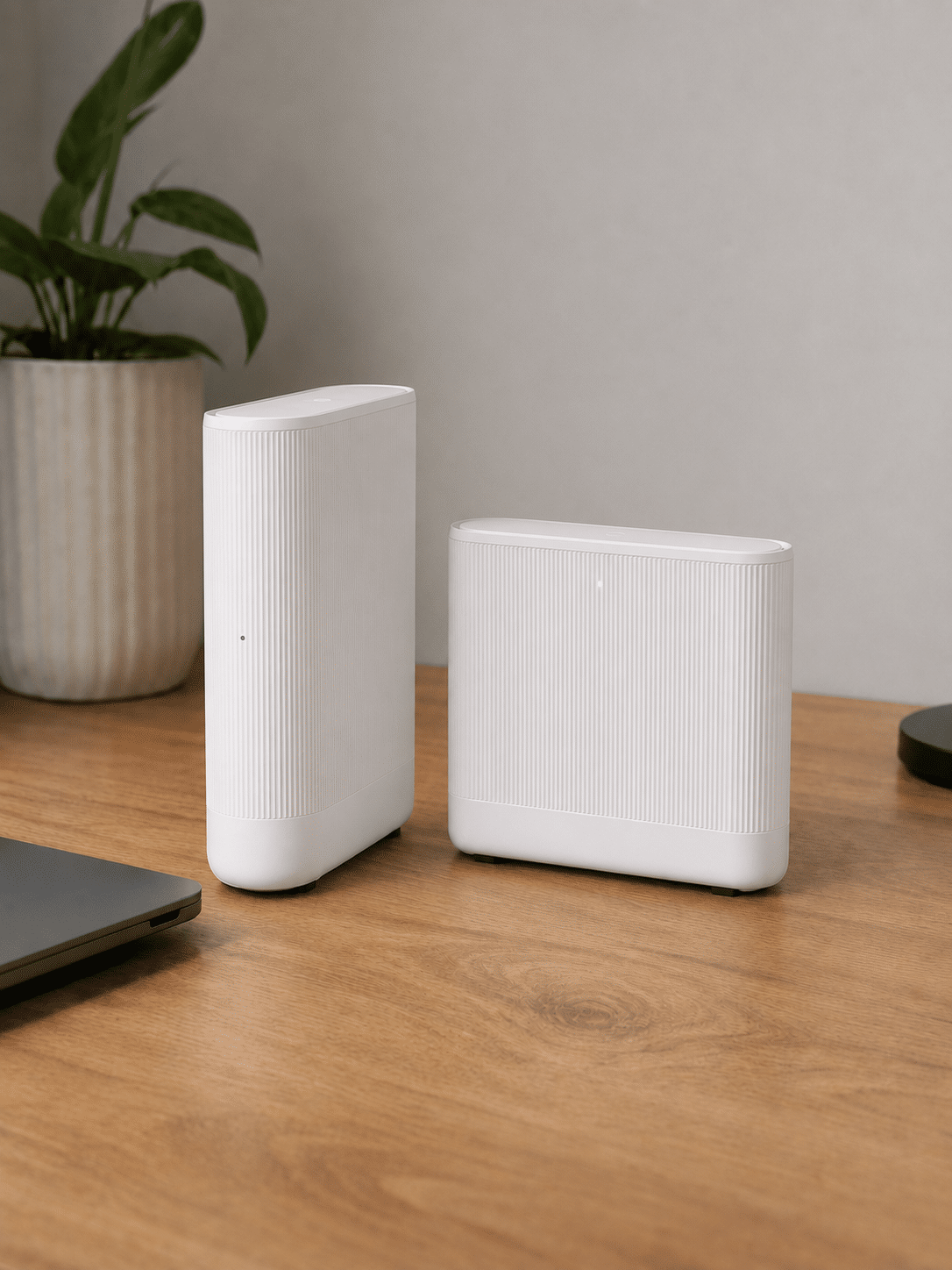
    Vodafone handles wired very well indeed, because it's all about the right tool for the job. The Power Hub supplies four useful Gigabit Ethernet sockets, which is plenty for the up-to-900Mbps packages that router arrives with. The Ultra Hub 7 adds a faster 2.5Gbps connection for packages exceeding 900Mbps, although you’ll need compatible devices to benefit fully. Neither router creates an obvious wired bottleneck for the package it accompanies.

    9.2 /10
    Overall score

    Wired connectivity score

    This score looks at how useful the router is if you want to plug devices in with cables, including the number of Ethernet ports, port speeds, phone ports and whether the router has the right connection for the network it uses.

    Router controls

    Vodafone gives you useful router controls without expecting you to become a network engineer. The Vodafone Broadband app covers everyday jobs such as checking connected devices and sharing your Wi-Fi details. Some assistance and security features depend on your router or package, however, so the experience isn’t quite the same for everyone.

    The Broadband app covers useful everyday jobs

    Vodafone’s Broadband app shows which devices are connected to your home network, helping you spot anything you don’t recognise. You can also share your Wi-Fi password through a QR code rather than reading a long collection of letters and numbers aloud.

    The app’s Who’s Home feature can notify you when a household member arrives or leaves, based on their device connecting and disconnecting. It’s a neat extra, although whether you find it reassuring or slightly intrusive will be a matter of taste.

    If you have the Ultra Hub, the app also provides Network Assistance for diagnosing common connection problems. That gives Vodafone’s premium router a little more app-based help than the standard Power Hub receives.

    Vodafone prefers automatic fixes to endless settings

    Both routers are designed to manage many Wi-Fi decisions automatically. The Power Hub can adjust its settings when nearby networks create interference, while the Ultra Hub 7 can balance compatible devices more efficiently when your network becomes busy.

    That approach suits most homes. You get a connection that quietly adapts without spending an evening buried in menus. People who enjoy controlling every last detail may find Vodafone restrictive, but its priorities are sensible for an ordinary household.

    Security is useful, but split across packages

    Parental controls are available with Vodafone Broadband, although they’re switched off by default. Secure Net Home adds broader protection against malicious websites, viruses and online scams, alongside more advanced controls for children’s devices.

    Pro 3 includes Secure Net Home permanently. Ordinary Power Hub packages receive a trial before it becomes another monthly extra, so Vodafone’s most complete set of controls isn’t part of the basic broadband service.

    The number of different apps and services makes the overall experience feel slightly fragmented. Routine router jobs sit inside the Broadband app, account management belongs in My Vodafone and the more advanced security tools use Secure Net. Everything useful is there, but it isn’t gathered neatly into one place.

    Vodafone provides approachable controls for checking connected devices, sharing your Wi-Fi and diagnosing common problems. Its automatic approach will suit most homes better than a wall of technical settings. The downside is fragmentation: router management, account jobs and advanced security are divided between different apps, while some of the best protection sits behind Pro 3 or an additional monthly charge.

    Router controls

    Vodafone Broadband router controls at a glance

    Here’s a quick look at the router controls you can expect, including app management, browser admin tools, Wi-Fi settings, security features and the physical buttons on the router itself.

    App management App-based controls Available
    Browser admin page Browser-based controls Available
    Parental controls Household controls Available
    Guest network Separate guest Wi-Fi Available
    QoS Traffic priority controls Available
    Device prioritisation Per-device priority Available
    Smart channel selection Wi-Fi optimisation Available
    Security features Built-in security notes Available
    Automatic updates Firmware updates Available
    WPS Push-button pairing Available
    Reset button Physical reset control Available
    Wi-Fi on/off button Physical Wi-Fi control Available

    Checked from manufacturer specifications. Fibredog tracks dozens of router specification parameters across dozens of provider routers. When a provider changes its router or features, this table is swiftly updated.

    What stands out

    • The broadband app provides real controls

      Vodafone's broadband app supports router and network management rather than serving only as an account or billing app.

    • Controls depend on the service tier

      The capable Power Hub is standard, while Pro 3 adds the Ultra Hub 7, managed boosters and a broader premium support and security setup.

    • Advanced security may cost extra

      Secure Net Home adds network protection and advanced parental controls. It is included with Pro 3, while ordinary Power Hub customers receive a trial before the monthly charge begins.

    Vodafone covers the router controls most homes will use, with helpful app tools and automatic Wi-Fi management. Parental controls and broader security are available too. The main weakness is that different jobs are split between different apps, while some of Vodafone’s best security features cost extra or give you another reason to add Pro 3.

    9.7 /10
    Overall score

    Router controls score

    This score looks at how easy the router is to manage, including app support, browser settings, parental controls, guest Wi-Fi, security features, updates and physical buttons.

    Using your own router

    Vodafone supports using your own router, which gives you freedom to improve your Wi-Fi, keep an existing mesh system or access controls its supplied hubs don’t provide. The trade-off is that Vodafone won’t support the replacement equipment, and several useful Vodafone features may disappear along with its router.

    Using your own router with Vodafone Broadband explained step-by-step

    Check that your router is suitable

    Vodafone Full Fibre uses an ONT on the wall, so your router needs the correct Ethernet WAN port. Multi-gigabit packages require WAN and LAN ports fast enough for the selected speed.

    Disconnect the Vodafone hub from the ONT

    The ONT is the small box where the Full Fibre connection enters your home. The Power Hub or Ultra Hub 7 normally connects to it using Ethernet.

    You are replacing that connection rather than placing your own router behind Vodafone's hub as a second router.

    Connect your router by Ethernet

    Run an Ethernet cable from the ONT to the correct WAN or internet port on your own router.

    Your router will then become the main router for the home rather than sitting behind Vodafone's hub as a second router.

    Enter the required connection settings

    Your router needs Vodafone's current broadband credentials and any network-specific settings required at your address.

    Vodafone uses several Full Fibre networks, so obtain the correct settings for your service instead of copying settings intended for a different connection.

    Test everything before packing Vodafone's hub away

    Check wired speed, Wi-Fi coverage, stability and every service you expect to use.

    Keep the supplied Vodafone hub available. Vodafone will not troubleshoot speed or reliability problems caused by replacement equipment and may ask you to reconnect its router.

    Vodafone supports third-party routers, but compatibility is your responsibility. Replacing its hub can remove app management, mesh integration, automatic 4G backup and potentially Digital Voice.

    Vodafone allows a complete router replacement

    A compatible third-party router can replace the Power Hub or Ultra Hub 7 rather than simply sitting behind it. On Full Fibre, it connects to the small fibre box installed in your home and takes responsibility for your Wi-Fi and wired devices.

    You’ll need a router suitable for the speed and type of Vodafone connection supplied at your address. You may also need to enter Vodafone’s connection settings during setup. This isn’t unusually difficult, but it’s more involved than plugging in the supplied hub and letting Vodafone handle everything.

    You’ll lose more than the Vodafone badge

    Replacing Vodafone’s router can remove its app management, Super WiFi system and automatic 4G backup. Digital Voice may also stop working, so keeping a home phone is something you’ll need to investigate before changing anything.

    Especially annoying with Pro 3, where several Vodafone services are designed to work together. Buying that premium service and then removing the Ultra Hub 7 could mean paying for features you can no longer use.

    Bring your own router for a clear reason

    Vodafone’s Power Hub is already a capable router, so replacing it simply because third-party equipment exists makes little sense. The switch becomes worthwhile if you own a good mesh system, need specialist controls or want to preserve a home network you’ve already spent time setting up.

    You’ll become responsible for compatibility, settings and problems caused by your equipment. Vodafone can still investigate the broadband line, but it won’t troubleshoot your router. Keep the supplied hub somewhere safe, as reconnecting it can help prove whether a fault lies with Vodafone or your own setup.

    Why you might still want your own router

    You already own serious kit

    If you've spent proper money on a mesh system, you may prefer it to starting again with Vodafone's Power Hub or Ultra Hub 7.

    You want a different mesh system

    Vodafone Super WiFi uses provider-managed boosters, but you may prefer Eero, Deco, Orbi or equipment you already own.

    You need specialist controls

    Third-party routers can provide deeper tools for VPNs, DNS, VLANs, firewall rules and home-network tinkering.

    You want controls outside Vodafone's ecosystem

    Your own router can avoid tying network management to Vodafone's app, Pro 3 equipment and paid Secure Net Home features.

    You want your existing setup unchanged

    Keeping the same Wi-Fi details can save you reconnecting every phone, television, camera and smart device in the house.

    You want more traffic control

    Conventional QoS, detailed traffic rules and specialist gaming or home-lab features may require equipment designed to expose those controls.

    Vodafone Power Hub and Ultra Hub 7 routers

    What changes when you use your own router?

    Your compatible router connects to the ONT and replaces the supplied Vodafone Power Hub or Ultra Hub 7. It then becomes responsible for the home network and the features Vodafone's equipment previously provided.

    The ONT

    Hands the connection to your router

    The ONT is the wall box where the Full Fibre connection arrives. It remains in place and provides the Ethernet hand-off.

    Your own router connects to it through a compatible WAN port instead of the supplied Vodafone hub.

    Your own router

    Takes over Wi-Fi and settings

    Your router handles Wi-Fi, wired devices, guest access and whichever VPN, DNS, firewall or traffic controls it provides.

    You also become responsible for compatibility, setup and router faults. Vodafone app management, mesh integration, automatic 4G backup and potentially Digital Voice may no longer work.

    Vodafone properly supports third-party routers, allowing compatible equipment to replace its supplied hub. That’s excellent flexibility if you have a better mesh system or need specialist controls. You’ll handle setup and troubleshooting yourself, however, while Vodafone app management, Super WiFi, automatic backup and potentially Digital Voice may no longer work.

    9.4 /10
    Overall score

    Using your own router score

    This score reflects how well the provider supports third-party router use, including ONT or modem-mode setup, WAN port speed, connection type and how cleanly your own router can take over the home network.

    fibredog mascot wearing a headset

    Having trouble choosing a broadband provider?

    No single best provider or package exists – only the best pick for you personally. Fibredog's YourMatch™ system uses thousands of provider metrics and a lot of maths to find you your perfect match.

    Some links on this page may earn us a small commission if you click through and buy. This never affects either what you pay, or our scores and recommendations. If, however, you’d rather bypass affiliate links, use this direct Vodafone Broadband link instead.